ExamFlow on your iPhone, like an app
In one minute you will have the ExamFlow icon on your Home Screen. It opens full screen and already signed in, without typing the address every time.
What you need
An iPhone or iPad with Safari (the browser that comes with it) and your ExamFlow account.
What you do not need
No App Store: ExamFlow does not have an app in the store yet. If you see one with that name, it is not ours.
Step by step
Screenshots are from an iPhone set to Spanish; on yours the options appear in your language.
- 1
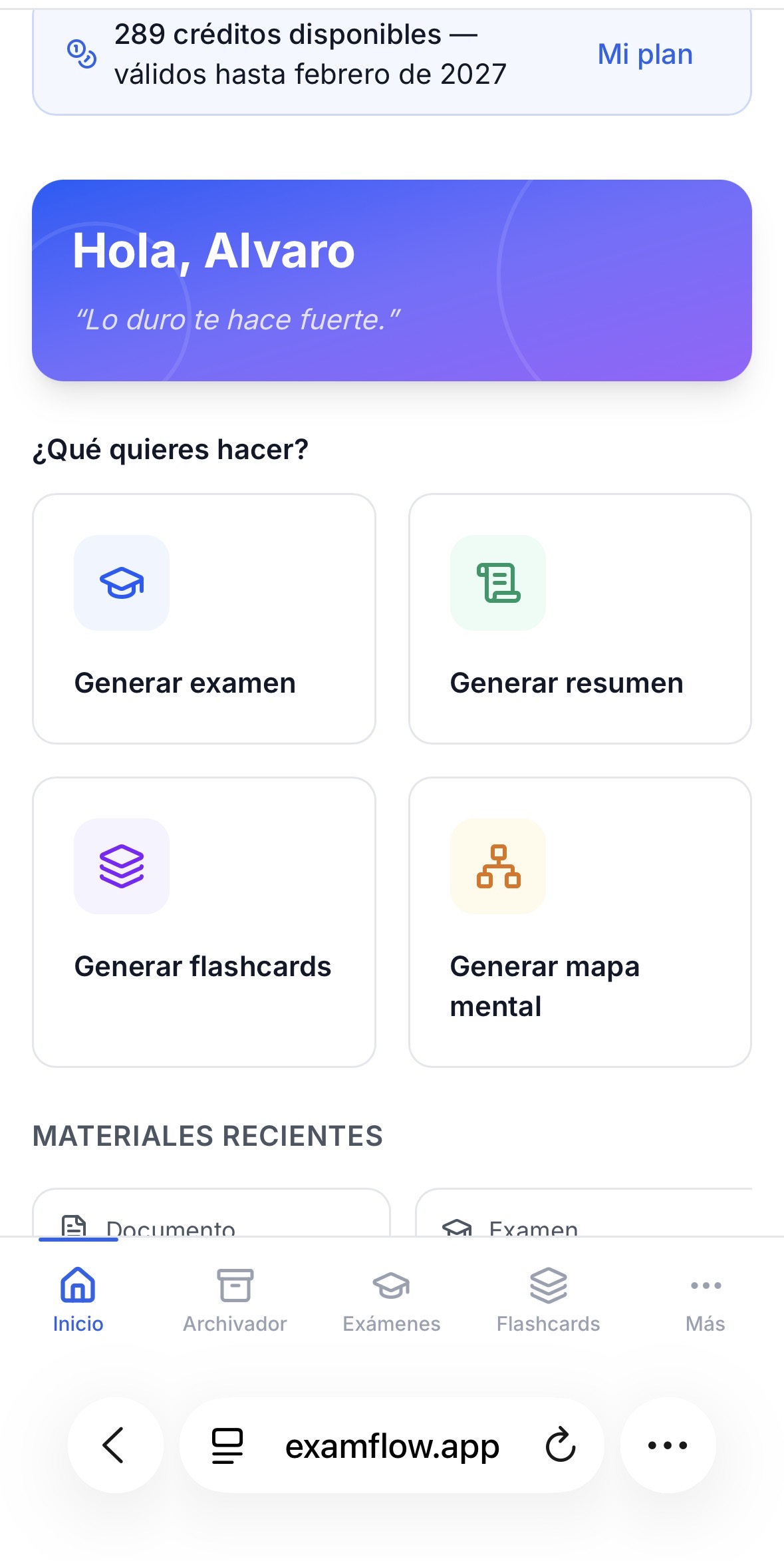
Open ExamFlow in Safari
Open Safari, go to examflow.app and sign in. Once you see your ExamFlow home screen, go to step 2.
- 2
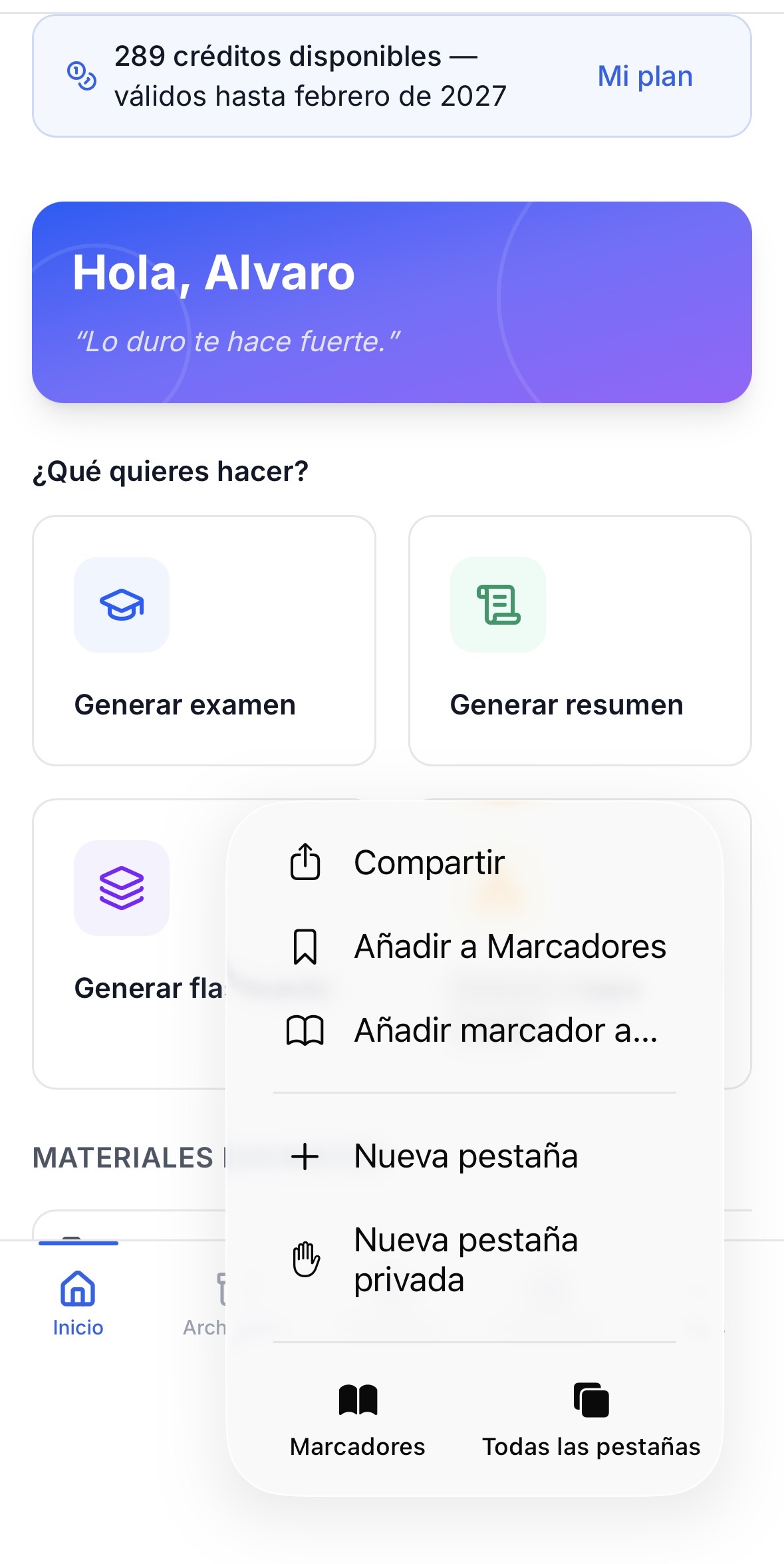
Tap the three dots and choose “Share”
At the bottom right, next to the address, tap •••. In the menu, tap Share.
- 3
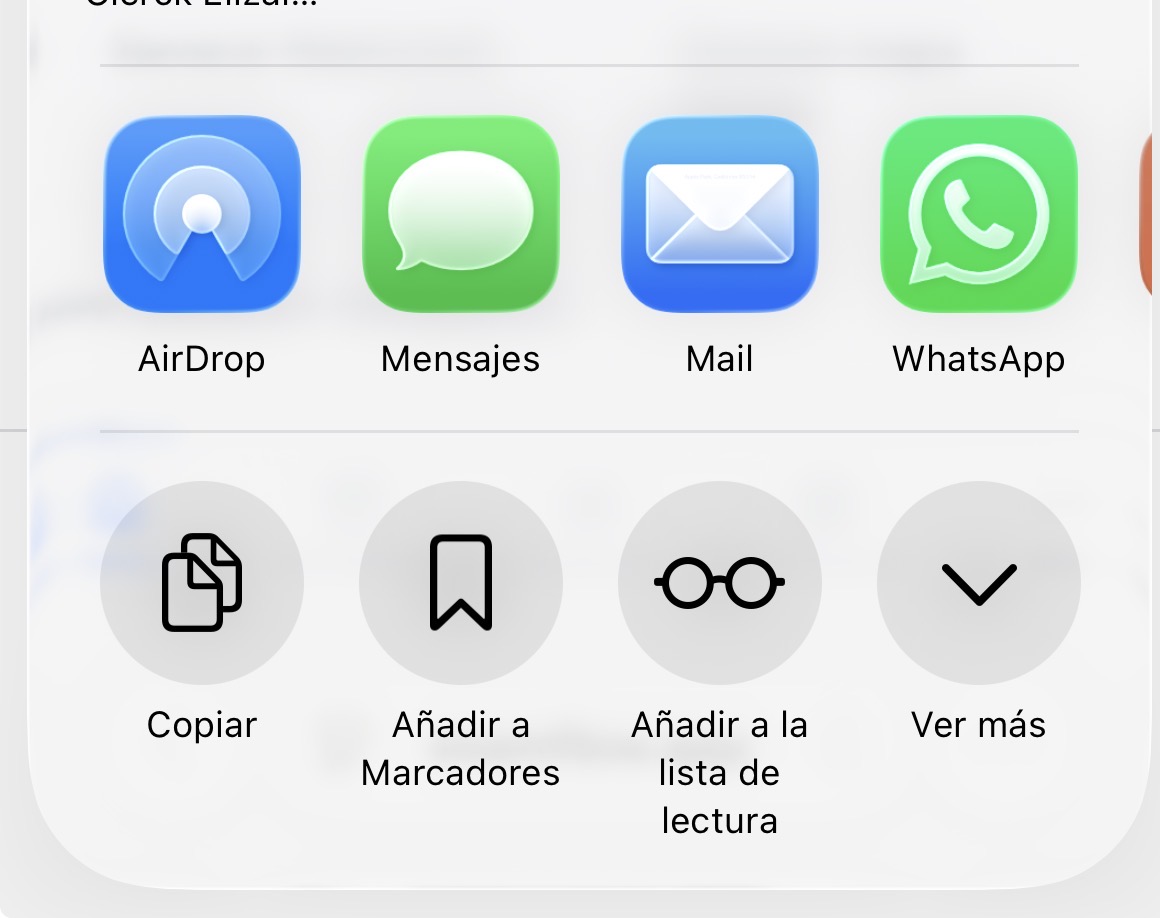
Tap “View More”
In the share sheet, tap View More (the down arrow) to see every option.
- 4
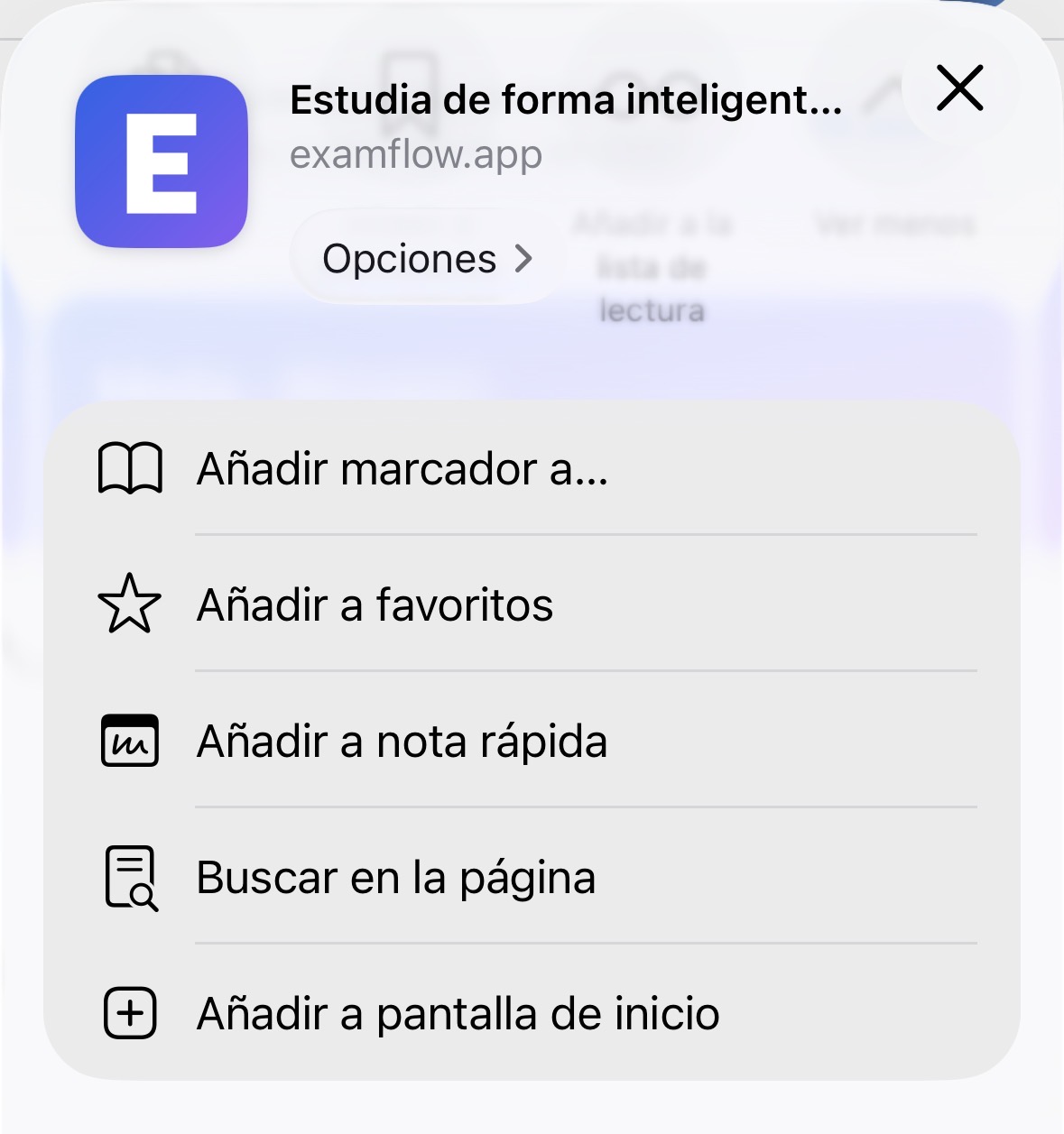
Tap “Add to Home Screen”
It is the last option in the list.
- 5
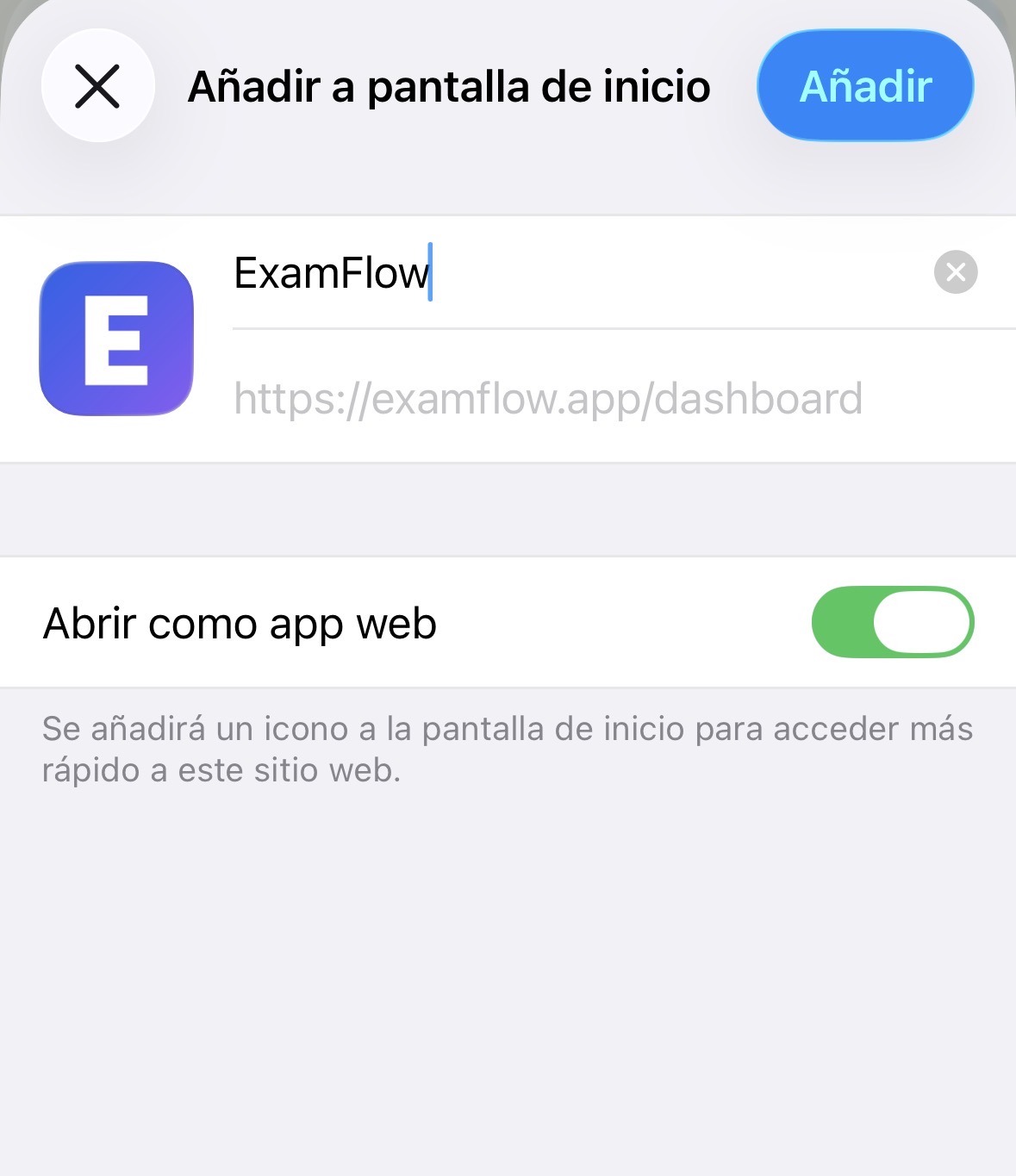
Keep “Open as Web App” on and tap “Add”
Make sure Open as Web App is switched on (green): that way ExamFlow opens full screen, like an app. Tap Add at the top right.
Done! The blue ExamFlow icon is now on your Home Screen. Tap it and you go straight into your account. If it ever asks you to sign in, do it once from there and it will stay saved.
Older iPhone? If you do not see the three dots, tap the Share button (a square with an arrow pointing up) in the Safari toolbar, scroll down and tap Add to Home Screen.