Study plan
Study plan prepares you for an exam day by day. It tells you what to do each day, takes you there with one tap and keeps track of what you've studied. It's available at every level.
On a computer it's in the side menu. On a phone, under More. Today's tasks also show on Home, under Today.
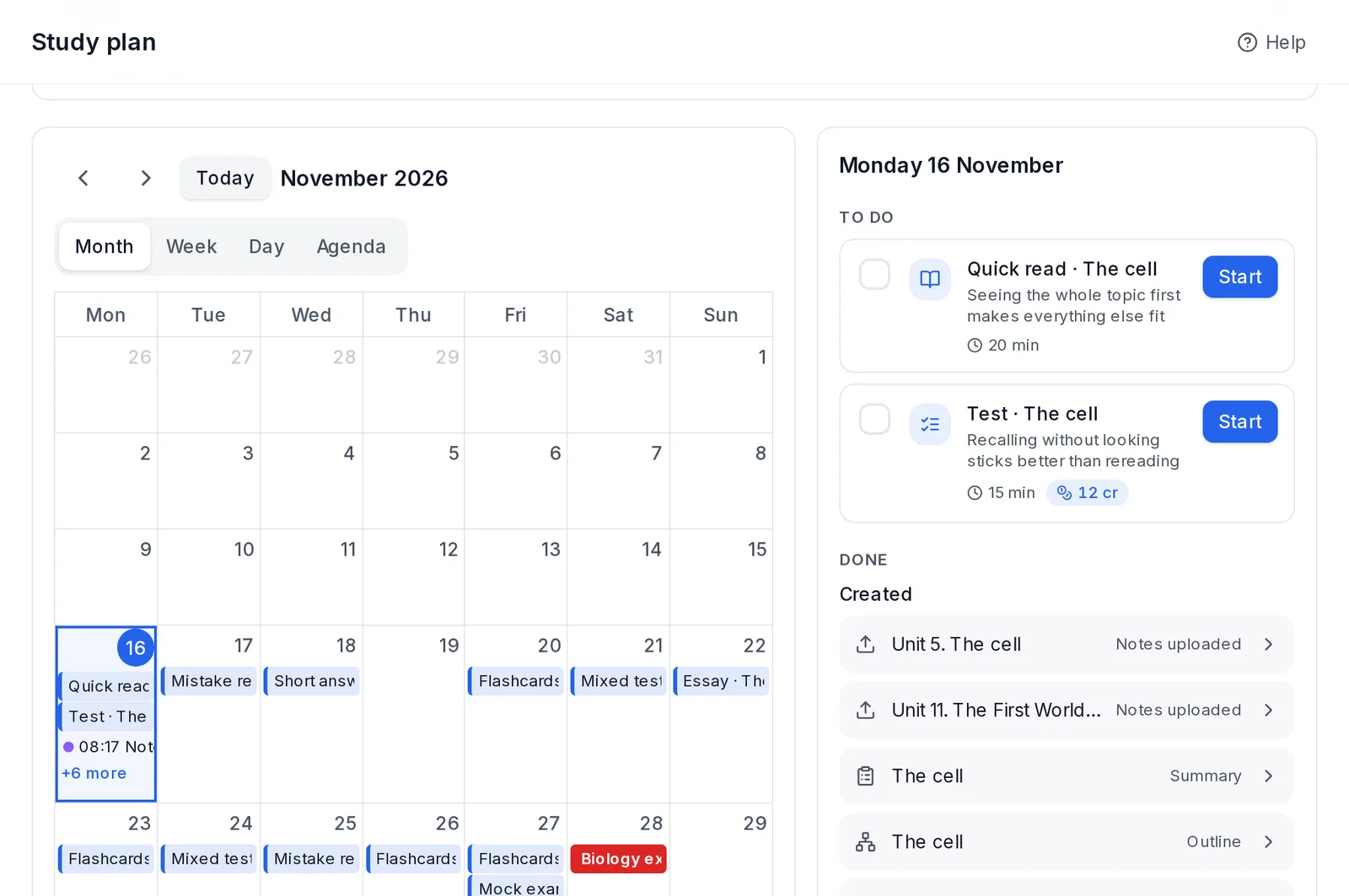 The study plan: the calendar, what to do and what's done each day
To start, tap Prepare for an exam and choose:
- the Subject,
- the Topics (all ticked by default),
- the Exam date, from tomorrow on.
See plan shows how many days and tasks you get, the first few days and an estimate of the credits. Create plan puts it on the calendar.
The plan is free. Credits are only spent when you do each task, and reviewing flashcards you already have costs nothing.
Only topics with processed notes count. If that subject already has a plan, it asks whether to replace it.
The method
The plan always follows the same order. Each task tells you in one line why it's there:
- Each block of topics starts with a Quick read and a Test to see what you know.
- The next day, a Mistake review: a new test focused on what you got wrong.
- Then Short answer: explaining it in your own words.
- A couple of days later, Flashcards: reviewing just as you start to forget.
- Once everything is covered, reviews that mix topics (Mixed test), Long answer and flashcards. For oposiciones, Recite the topic.
- The day before, a short Mock exam and flashcards. Nothing new.
In primary there are no long answers, and short answers become True or false.
At the bottom of the screen, The method has this explanation and the link to Resources.
The calendar
You can see the calendar by Month, Week, Day or Agenda. Agenda is the week as a list, and it's the default on your phone. It remembers the last view you chose.
Tasks and the exam sit at the top, as things for the day. What you studied and what you created shows up at its time in Week, Day and Agenda.
Each thing has its colour:
- blue: what's due,
- green: done,
- red: the exam,
- cyan: what you studied,
- purple: what you created.
Tap something you did to open it, or a day to see its details.
Each day on the calendar has two parts:
- To do: the day's tasks, with minutes and cost. Start opens the task ready to go: the exam with its type, topics and number of questions, the topic's flashcards, or the summary or the notes. You still decide whether to generate it, as always.
- Done: your diary for that day, whether or not it was in the plan. At the top, the time you studied and on what: exams with their grade, cards reviewed, and summaries, outlines and notes read. Below, under Created, what you made: notes uploaded, flashcards, summaries, outlines and exams generated. Each row opens what you did. It works even without a plan, and what you created shows up for earlier days too.
Tasks tick themselves when you do them:
- when you hand in the exam,
- when you review 10 flashcards from the subject that day,
- when you read the topic's summary, outline or notes for a couple of minutes,
- when you finish reciting the topic.
You can also tick them by hand. Whatever you don't do moves to the following days, never past the day before the exam. If a topic goes badly in an exam, the plan adds a mistake review the next day.
At the top you see your active plans, with the days left and tasks done. You can delete them there. After the exam it asks How did the exam go? and the plan closes.
In your phone's calendar
Add to your calendar creates a private link to see the plan in your iPhone or Google calendar. You have three options:
- Add to iPhone or Mac Calendar,
- Add to Google Calendar (Android),
- Copy the link.
Each task shows up as an all-day event, with the link to open it in ExamFlow. The exam day shows up too. Your calendar refreshes on its own: about every hour on iPhone, every few hours on Google.
On Android, Google only lets you subscribe from a computer. Tap Add to Google Calendar (Android) on your computer, or copy the link and open it there. Then, in the Google Calendar app on your phone, go to Settings, tap the ExamFlow calendar and turn on Sync.
Turn off the link stops it working. Then remove the subscription from your calendar.
From your teacher and Exa
In an exam's results, the What to do now block may suggest preparing your next exam. It opens Prepare for an exam with that subject and topic.
Exa can also set it up if you ask. It tells you the plan and what it would cost, and creates it once you say yes.
Resources
Resources brings together articles on how to study, by category: Study techniques, Planning, Wellbeing, Oposiciones, EBAU (Spain's university entrance exam) and How to use ExamFlow.
It opens from The method, in the Study plan, with More study techniques in Resources.