Creating your account
On examflow.app, tap Start free. Sign-up is a single step: name, email and password. You can also sign in with Google.
If you sign up with email, you'll receive a 6-digit code to verify it. If it doesn't arrive, there's a button to resend it. There's a countdown between sends. When you resend it, or if you land on that screen by trying to sign in before verifying, you'll see "Code not arriving?": check spam and Promotions, Sign up with another email if the address was misspelled, and Log in with Google, which needs no code.
Your account is created in the language of the page you sign up from. There's one exception: if you sign up from the Spanish website, but your browser has no Spanish (Spain) language and your time zone belongs to a country that doesn't speak Spanish, it's created in English.
Forgot your password? In Sign in → Forgot your password? we'll send you a link to change it. If you'd already typed your email, it's filled in for you.
If you sign in with the wrong password, the Incorrect password. message has a "Can't remember it? Email me a link to change it" button. It sends the link right away, without leaving the screen. If you get the password wrong twice and don't manage to sign in, 20 minutes later you'll get an email, "couldn't get in?", with a Change my password button: it opens Forgot your password? with your email already filled in.
Your education level
Your level adapts the difficulty, the grading and the look of the app. It's more playful in primary and more understated from ESO onwards.
Sign-up doesn't ask for your level. Inside the app, on Home, a "What are you studying?" card lets you choose it with one tap. You choose from:
- primary
- ESO (Spanish secondary school)
- bachillerato (Spanish final school years)
- university
- oposiciones (Spanish civil-service exams)
You can put it off for a few days. But you must choose it before Recite topics and before an exam with questions graded by AI. In those cases, the screen itself will ask you.
If you've already studied something, the card suggests a level ("From what you have studied, your level looks like…"). It's the one you chose when you asked for a quick exam on a topic without notes. If you haven't done that, it's the one your documents suggest. It's only a suggestion: it doesn't count until you confirm it.
When you pick it on the card, if your level has years, it also asks "And which year are you in?". It's optional: you can tap Not now.
You can change level and year whenever you like in Settings → Your profile → Edit.
With the app in English, levels are shown with their equivalent (for example, "Sixth Form / final school years (16–18)" for bachillerato). In English, oposiciones only appears for accounts from Spain and from the Latin American countries whose education systems are in the app. In Spanish it always appears.
The free trial
When you sign up you get a trial with:
- 30 pages of material, which don't use credits.
- 40 credits to generate content.
It lasts 14 days and doesn't renew. There's one per person. To continue, buy a pack or subscribe to a plan (see the Credits and plans page).
If you have page allowance left, you can upload a whole file even if it goes slightly over, up to 50 pages in that upload. Once the allowance runs out, you can't upload more material during the trial.
Summary audio isn't available during the trial.
If you sign up with an email or Google account that has already had the trial, the new account starts without a trial and goes straight to the packs. The same happens if ExamFlow has detected another account of yours from that connection. In that case, the screen says "This account doesn't include the free trial" and has a Contact support button in case it's a mistake. This can happen, for example, if you share a connection with your school or your family.
The menu
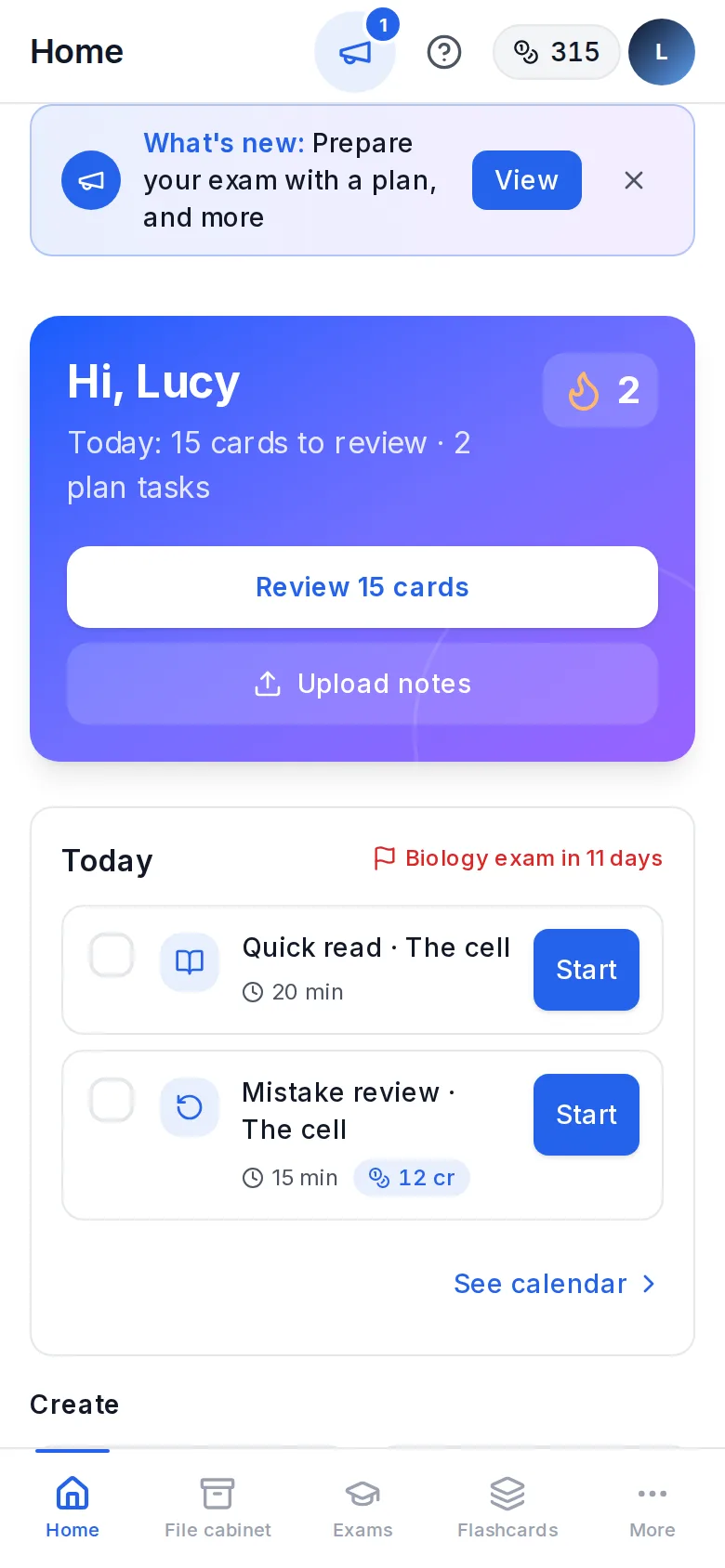 On a phone, the bottom bar with Home, File cabinet, Exams, Flashcards and More
The side menu is the same at every level:
- Home, File cabinet, Summaries, Exams, Flashcards and Study plan.
- At the bottom, the What's new megaphone, Help (this guide) and Settings.
The other screens (Recite topics, Mind maps, Documents…) open from inside: from the subject, from each topic or from the Exams screen.
At the top right of each screen, Help opens the guide page that explains it. On a phone, it's the ? icon in the header.
On a phone, there's a bottom bar with Home, File cabinet, Exams, Flashcards and More. More contains Study plan, Summaries, Mind maps, Recite topics (from ESO), Achievements (primary and ESO), Settings and Help (this guide).
On tablets and medium-sized screens (up to about 1,280 px wide), the side menu is a narrow strip, to leave room for the content. Each icon has its name underneath. Your year appears at the top: if you have several, you switch there. At the bottom are your balance and a button to switch to the other language.
Primary has the same menu, but without Recite topics. Achievements open from Home. In Settings → Appearance you choose "Fun" mode (with drawings, the landscape and the wooden menu) or "Serious" mode (the look of the other levels). It only changes the look, not the menu options. In both modes the text is larger.
Home
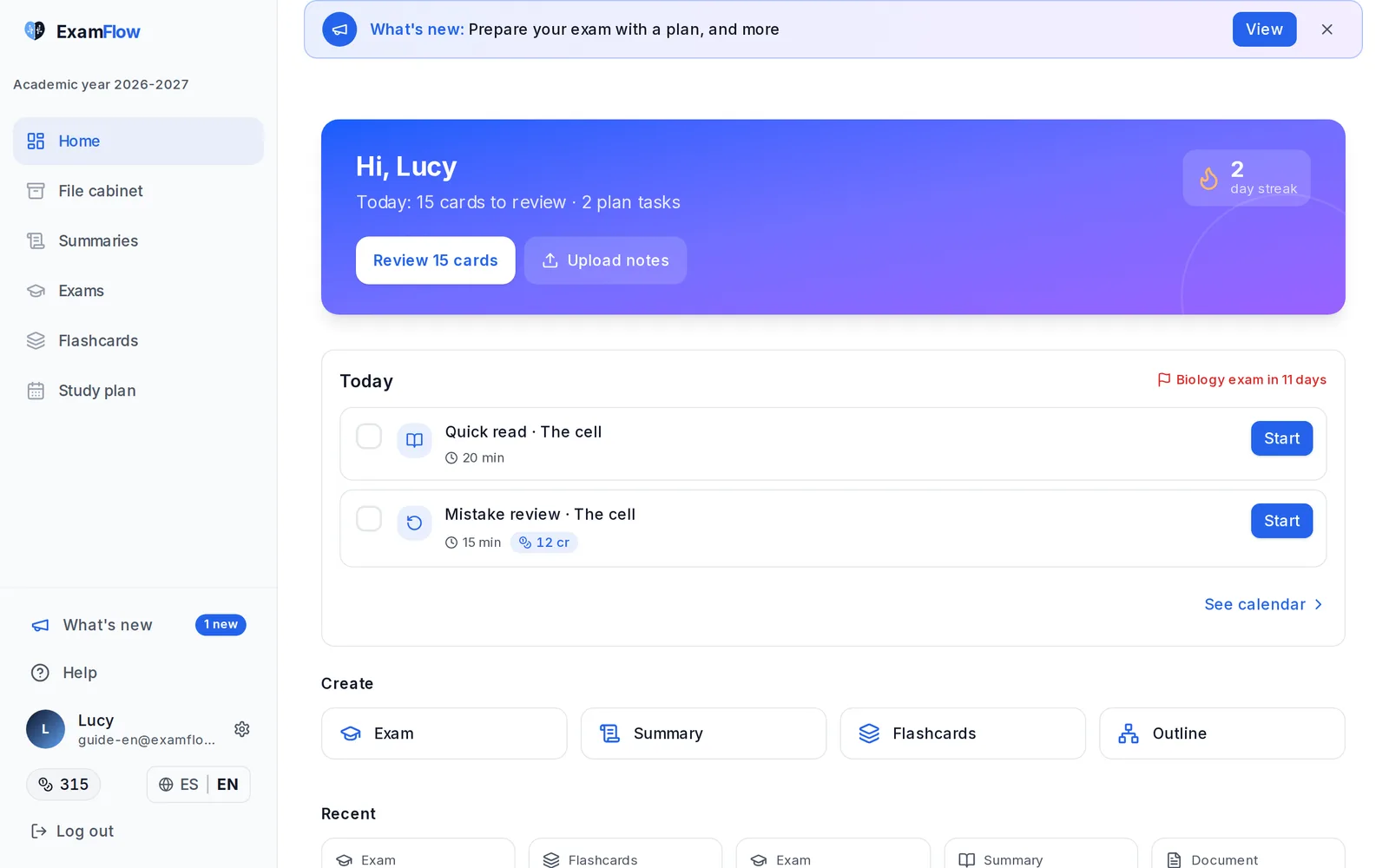 Home: what you have today, the buttons to review and upload notes, Today, Create and Recent
It's the first screen when you sign in. It has:
- At the top, a greeting, your streak and what you have today: cards to review and plan tasks.
- Two buttons. The first one depends on where you are: Review N cards if you have flashcards due, Upload my first notes if you don't have anything yet, and Take an exam otherwise. The second one is Upload notes.
- Today, with your study plan tasks. If you don't have a plan, Got an exam coming up? offers to prepare one.
- If a topic needs work (an average below 6), a reminder with Exam on that topic.
- Create: Exam, Summary, Flashcards and Outline.
- Recent, to get back to what you used last. If a photo or file has a meaningless name of letters and numbers, it shows as "Document" and its date. Exams without a title of their own show their topic's name.
If you're preparing for oposiciones, there's a block with your exam: calendar, milestones and the official syllabus. From the syllabus you can create your subjects.
In primary, Home is more playful: XP, level, achievements and progress by subject. In ESO, achievements open from More → Achievements on a phone.
Your session
In the browser, your session closes after 30 minutes of inactivity. We warn you 5 minutes before.
If you use ExamFlow as an app from your phone's home screen, or installed on your computer, the session doesn't close (see ExamFlow on your phone and as an app).