The File cabinet is where all your material lives, organized in folders.
Folders
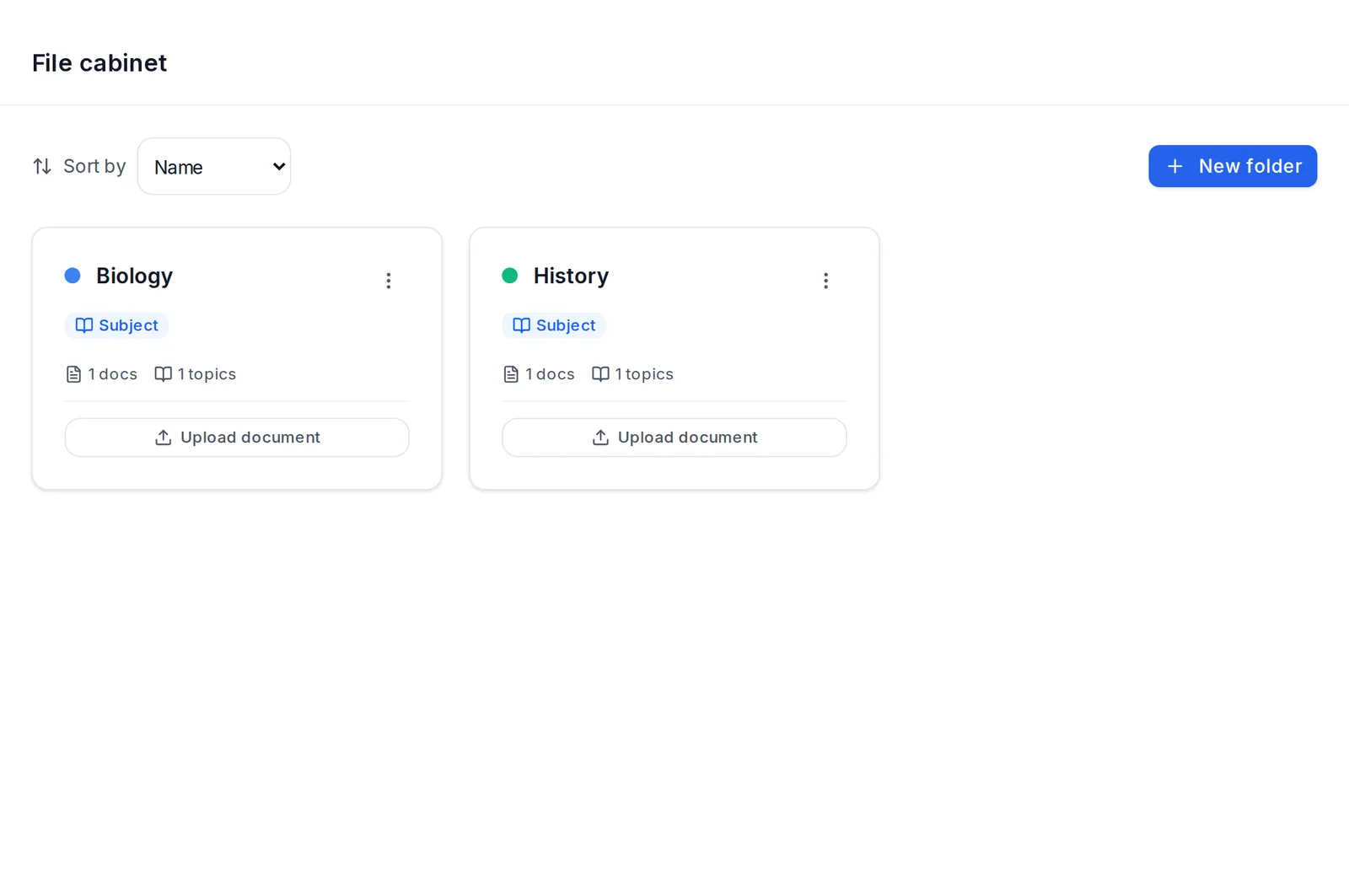 The File cabinet with two subjects, the sort order and the New folder button
Each folder has a type, shown on its label:
- Subject: a subject with its topics (Biology, Constitutional Law…).
- Exam: material to prepare for a specific exam, with an optional date.
- Project: a piece of work or project with its material.
To create one, tap New folder. Choose the type and the name. If you like, add a description and a color. The type can't be changed later.
In Exam folders you can set the exam date. The card then shows a countdown: "N days left", "Exam is today!" and, once the date has passed, "Exam passed".
Each card shows:
- How many documents it has. For subjects, also the topics.
- A button to upload a document straight into that folder.
- A ⋮ menu with Edit and Delete.
At the top you can change the order with Sort by: name, most recent or type. The app remembers your choice.
You can't have two subjects with the same name within the same year or oposición.
If you're preparing for oposiciones (Spanish civil-service exams), the Official syllabus panel appears with the subjects and topics of your exam. With the + button you create each subject or topic in one click.
Inside a subject
All the topics are shown in the subject itself, one below the other, each with its material.
Some cards, such as an outline or a mind map, open their topic's view. There you have that topic's material and the Generate with AI menu.
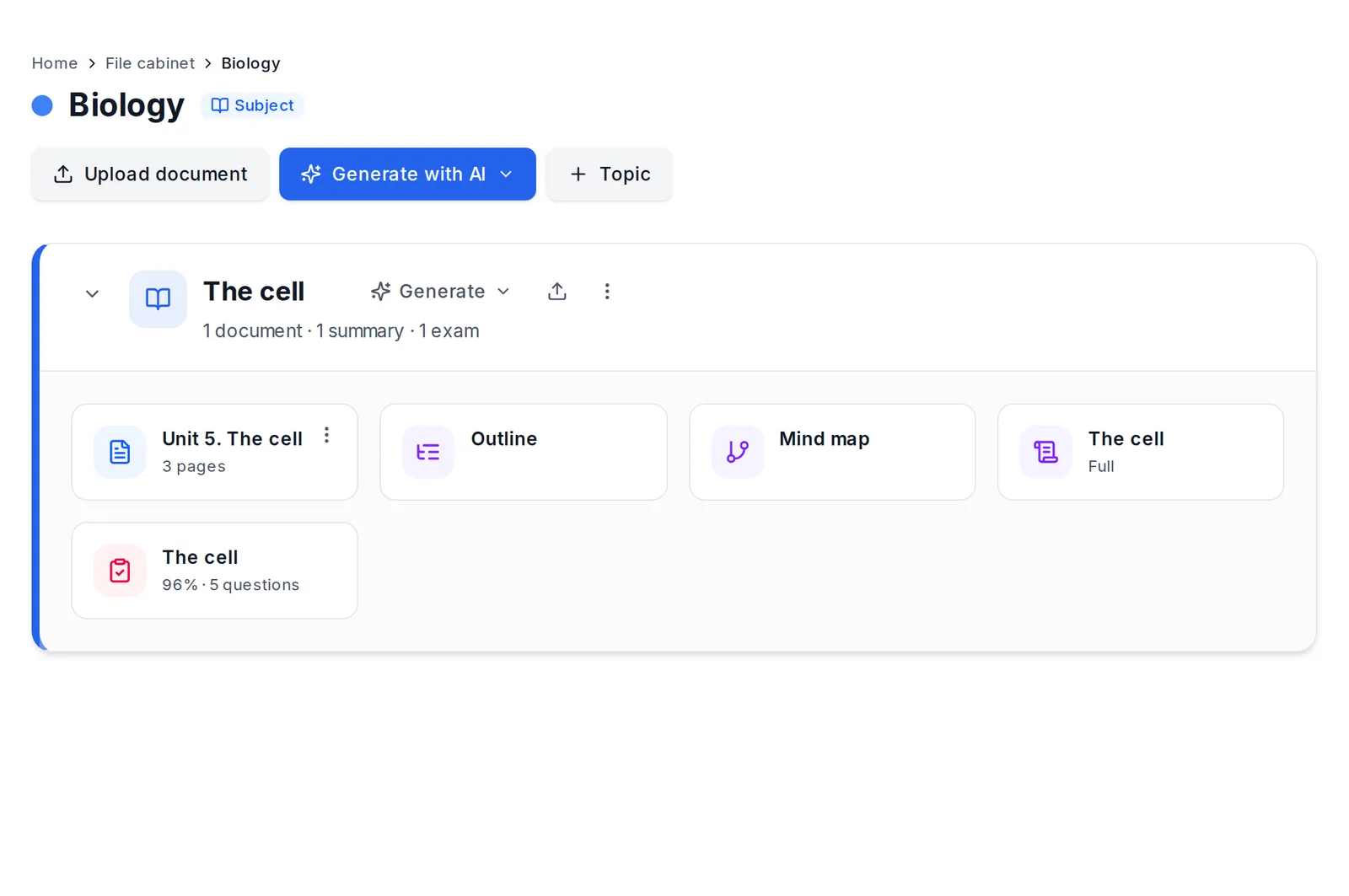 A subject from the inside: Upload document, Generate with AI, + Topic and the topic with its document, outline, mind map, summary and exam
At the top there are three buttons:
- Upload document.
- Generate with AI: AI-written notes, summary, exam or flashcards for the whole subject. It shows what each one costs. AI-written notes is always available. Summary, exam and flashcards are enabled once there are processed documents.
- Topic (with a +): instantly creates a topic called "Topic N", with the next number. You can change the name afterwards.
If the subject has flashcards, an "N flashcards" notice opens your decks for that subject.
Each topic is a block with its name and what it contains ("2 documents · 1 exam"). Next to the name you have:
- Generate: AI-written notes, outline, mind map, summary, exam or flashcards for that topic.
- An icon to upload a document to that topic.
- The ⋮ menu: Rename topic, Suggest a name and Delete topic. Suggest a name takes the name from the content, so it only appears if the topic has documents.
Below the name are its documents, outlines, summaries, exams and flashcards. Tap them to open them. The arrow on the left collapses the topic.
An empty topic shows two buttons: Upload document and AI-written notes.
At the end of the subject there are two more blocks:
- No topic: documents that aren't in any topic yet.
- Whole subject: summaries and exams made with material from several topics or from the whole subject.
How to do each thing
- Rename a topic: tap its name (or the pencil next to it), type the new one and press Enter. You can also do it from ⋮ → Rename topic.
- Give it an automatic name: ⋮ → Suggest a name. Each document's ⋮ menu has this option too.
- Delete a topic: ⋮ → Delete topic.
- Move a document to another topic: in the ⋮ menu of the document's card, tap Move to "topic name". That menu also lets you remove it from the topic, retry it if processing failed, get a suggested name or delete it.
- Upload to a specific topic: tap the upload icon next to the topic name. The page doesn't change. The document appears in its topic with its progress ("Step N of 3") and lets you know when it's done.
Which topic each document goes into
Each document goes into the topic you choose when you upload it, or into a new one named after the document.
The app doesn't split a document into several topics. If a PDF covers several topics, upload them separately or move the document to the topic you want.
Exam and Project folders
They don't have topics. All their material is together in a single view, with:
- the title, which you can edit,
- a Generate with AI menu,
- the progress of what you've done.
Students and oposiciones candidates
- If you're a student, you work inside your Grade for the year. It's created automatically when you start, and there's at most one per calendar year.
- If you're preparing for oposiciones, you work inside your Civil service exam and don't have years (see Oposiciones (Spanish civil-service exams)).