Generating flashcards
- Go to Flashcards → Generate flashcards, or use a topic's Generate → Flashcards menu.
- Choose the document and how many cards you want: 5 to 30 per generation.
- Each deck is of one document. If you come from a topic or a folder with several, the app asks Which document?.
- A deck of up to 15 cards costs less than a bigger one. The cost is shown before you confirm.
- Each generation is a deck. When it's done, the review for that deck opens.
The cards come from the document and in its language, at the level you've chosen. If you haven't chosen it yet, at the level the material suggests.
If the document is a vocabulary list (each line a word and its translation or definition), the cards are for memorizing those pairs:
- Word → meaning.
- Meaning → word.
- Some sentences with a gap.
They only use the words on the list. Anything that isn't vocabulary is in the app's language.
Decks also come from exams. The quick generation of an exam can also create its flashcards. And the teacher review offers to generate flashcards of what you got wrong.
Your decks
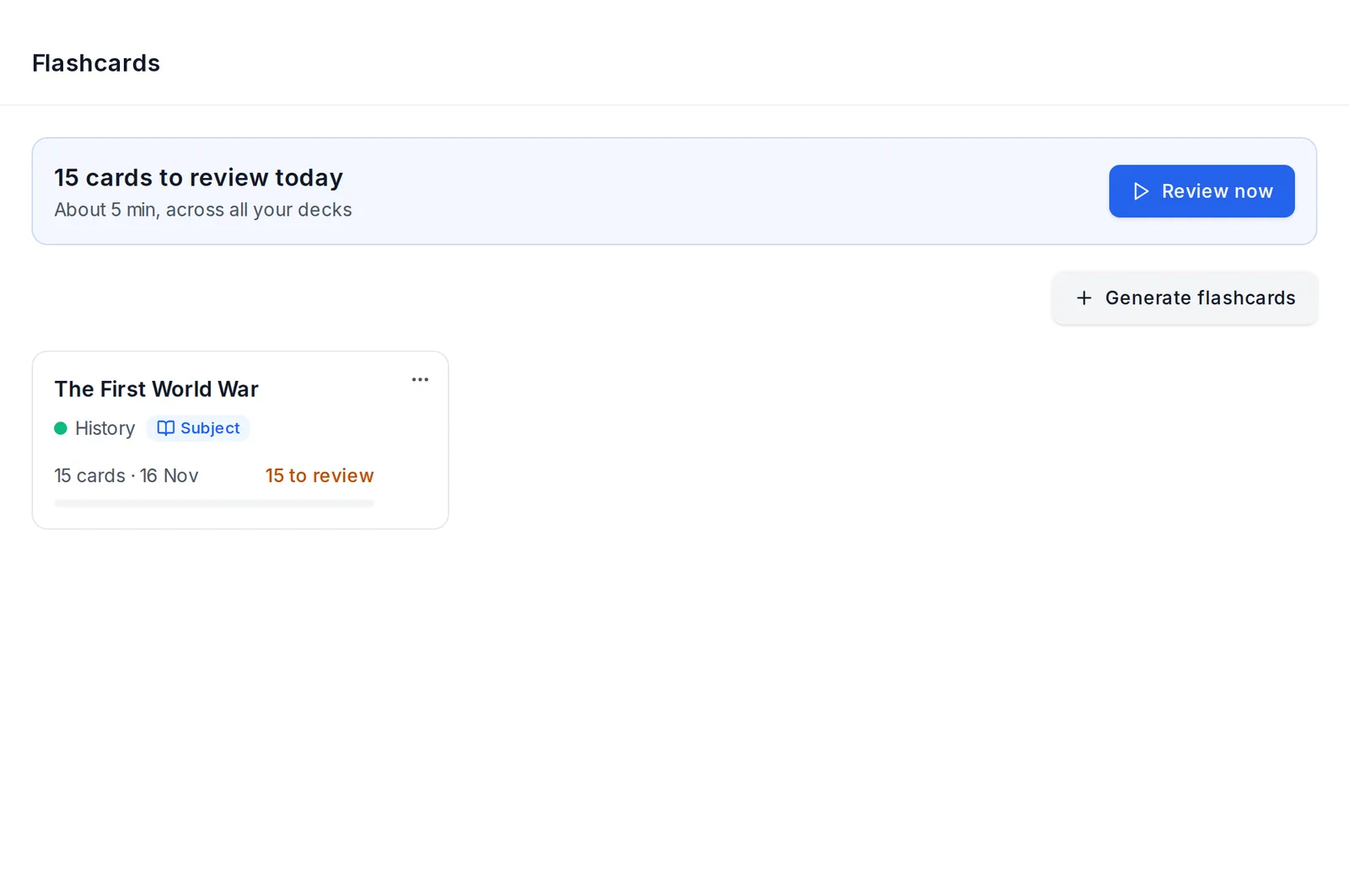 Flashcards: the cards to review today and the decks
The Flashcards page shows your decks, from newest to oldest. Each one shows:
- Its name: the topic's, the document's, or the subject's if it covers all its material. You can give it your own.
- The subject with its type: Subject, Exam or Project.
- Where it comes from, if it came from an exam: "From the exam "…"" or "Mistakes review of "…"".
- How many cards it has, the date and how many you have To review (or Up to date), with a bar showing your progress.
Tap a deck to review all its cards.
Each deck's ⋯ menu has:
- Rename. If you leave it empty, it goes back to the automatic name.
- Print.
- Delete deck. It deletes its cards and their review history. It asks for confirmation.
With 7 decks or more, the search box and the filters appear. The search looks at the name, subject, topic, exam and also the text of the cards. The filters are Subject, Status (To review / Up to date) and the order (Most recent, Oldest, Most to review, Name (A-Z)).
Reviewing
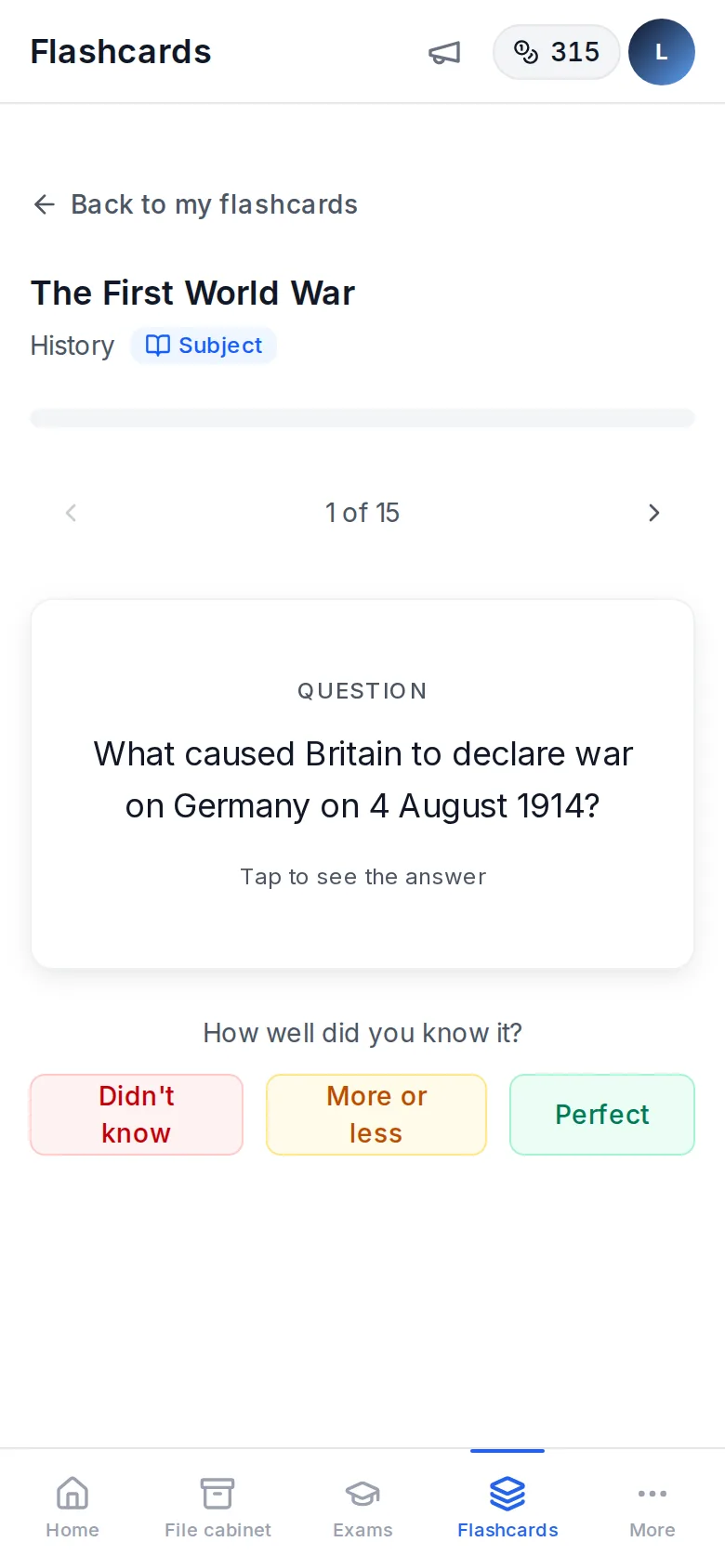 Reviewing a deck on a phone: the question and Didn't know, More or less and Perfect
- At the top you see what's due today across all your decks: "N cards to review today", with the approximate time, and Review now. It only appears if there are cards due.
- When you see the answer, you rate how it went: Didn't know, More or less or Perfect. Based on that, spaced repetition decides when each card comes back. The ones you miss come back sooner and the ones you know well are spaced further apart.
- Some cards carry a figure from your material, on the question or on the answer. Tap it to see it full size.
- On a computer there are shortcuts. Space flips the card. Once flipped, 1, 2 and 3 answer (Didn't know, More or less, Perfect). With the arrows you go back to cards you've already answered.
- At the end of a session you can Restart to review it again. Spaced-repetition progress isn't erased. You can also tell us whether they were useful.
It works better with short, frequent reviews (5-10 minutes a day) than with one long one.
In primary the card is bigger and colored: orange for the question, green for the answer. The three buttons have a face, and at the end a star appears.
Printing
⋯ → Print on a deck produces its cards as sheets to cut out. You cut along the dashed line and fold along the dotted one: the question ends up on one side and the answer on the other. It doesn't cost credits.
Editing
For now, cards can't be edited. If you're not happy with a deck, generate another from the same document and delete the old one.