Creating an exam
To create an exam, go to Exams → New exam. You can also do it from a topic's Generate → Exam menu, or from the subject's Generate with AI → Exam. The wizard goes step by step:
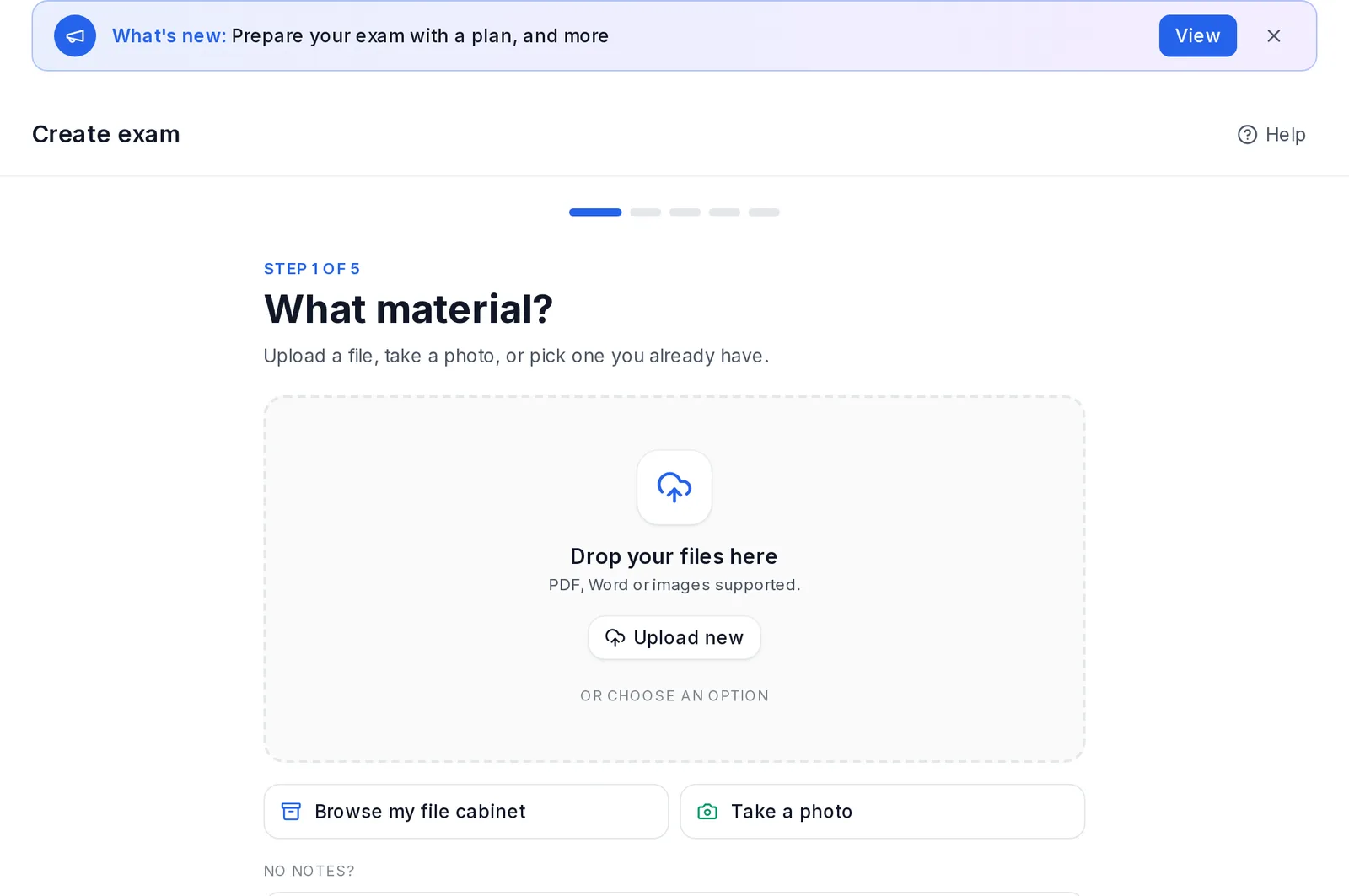 The wizard for creating an exam, step 1 of 5: what material
- What material?: the topics or documents to ask about. You can also upload one there and then. Below, under No notes?, you have two options:
- Make the exam straight away (see Without notes, below).
- Create the notes with AI, which takes you to AI-written notes. Once the notes are done, you create the exam from the viewer or by coming back here.
- What format?:
- Multiple choice, True/False, Short answer and Long answer. Long answer isn't available in primary.
- Oral recitation (not in primary): one question asking you to develop the whole topic in writing, as if you were presenting it. To practise it out loud, recording yourself, use Recite topics (see that page).
- Theoretical or Practical focus. Practical means problems solved step by step.
- What level?: Let the AI decide, Easy, Medium or Hard. In primary it's always easy.
- How many questions?: the number of questions, with a maximum depending on the type. If you like, add a Time limit: 15, 30, 45, 60, 90 or 120 minutes.
- Review and generate: a summary of what you chose and the cost. Inside, the Advanced options drop-down has the title and the page range. If you don't write a title, the exam is named after its topics (for example, "The cell and Mitosis"). For written-answer types, it also has Check spelling: each mistake takes marks off, as in a real exam. The default is 0.25 points per mistake, and you can adjust it from 0 to 5.
If the exam has written-answer questions, its price includes the AI grading of the first submission. It's charged when the exam is generated. If you retake it, each new submission pays for its grading, and the Finish button shows you what it costs.
Without notes
In the What material? step, Make the exam straight away creates an exam from just the topic name. No notes are saved. There are three steps:
- Which topic?: type the topic (at least 3 letters) and choose the folder to save it in. If that folder already has a topic with that name, that one is used.
- Tell me a bit more: what you're studying, your year and the difficulty. If you like, also what's included.
- Your exam will mainly cover…: the sections the AI proposes, which you can remove or add to, and the number of questions.
It's a multiple-choice exam. Some flashcards for the topic are created along with it. The generate button shows you the cost of both.
Taking the exam
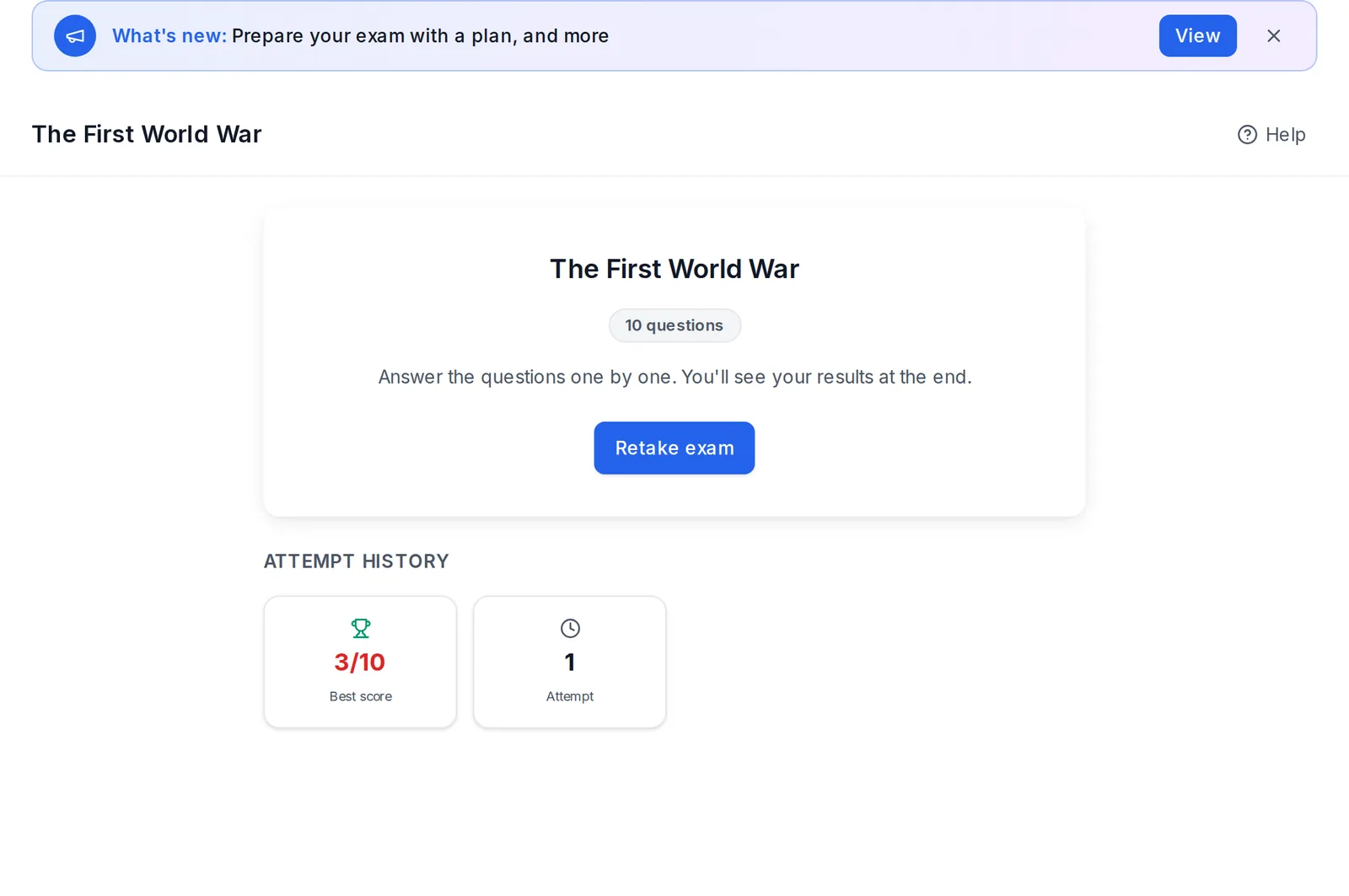 Before starting: number of questions, Retake exam, Print blank exam, Download as PDF and the attempt history
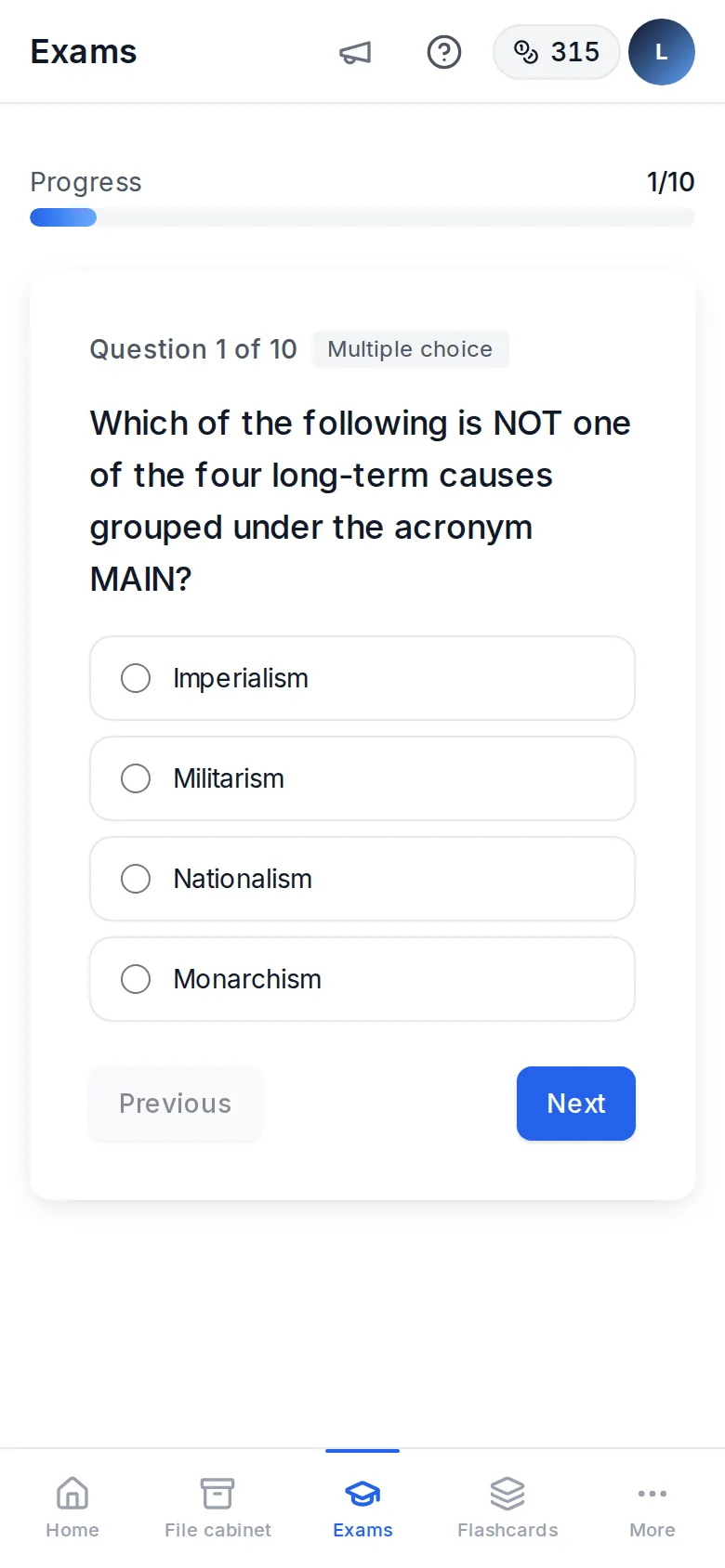 A multiple-choice question on a phone, with the progress bar and the Previous and Next buttons
- Before starting you see the number of questions, the time and your attempt history: best, worst and average score. Tap Start exam or Retake exam.
- Print blank exam and Download as PDF give you the questions to do it on paper, with space for name, date and score.
- During the exam you have a progress bar and the Previous, Next and Finish buttons.
- If a question is about a figure from your material (a diagram, a chart, a table), you'll see it above the question. Tap it to enlarge it.
- If you set a time limit, you'll see a timer. When it runs out, the exam is submitted automatically.
- If you leave without submitting, you pick up where you left off when you come back.
Results
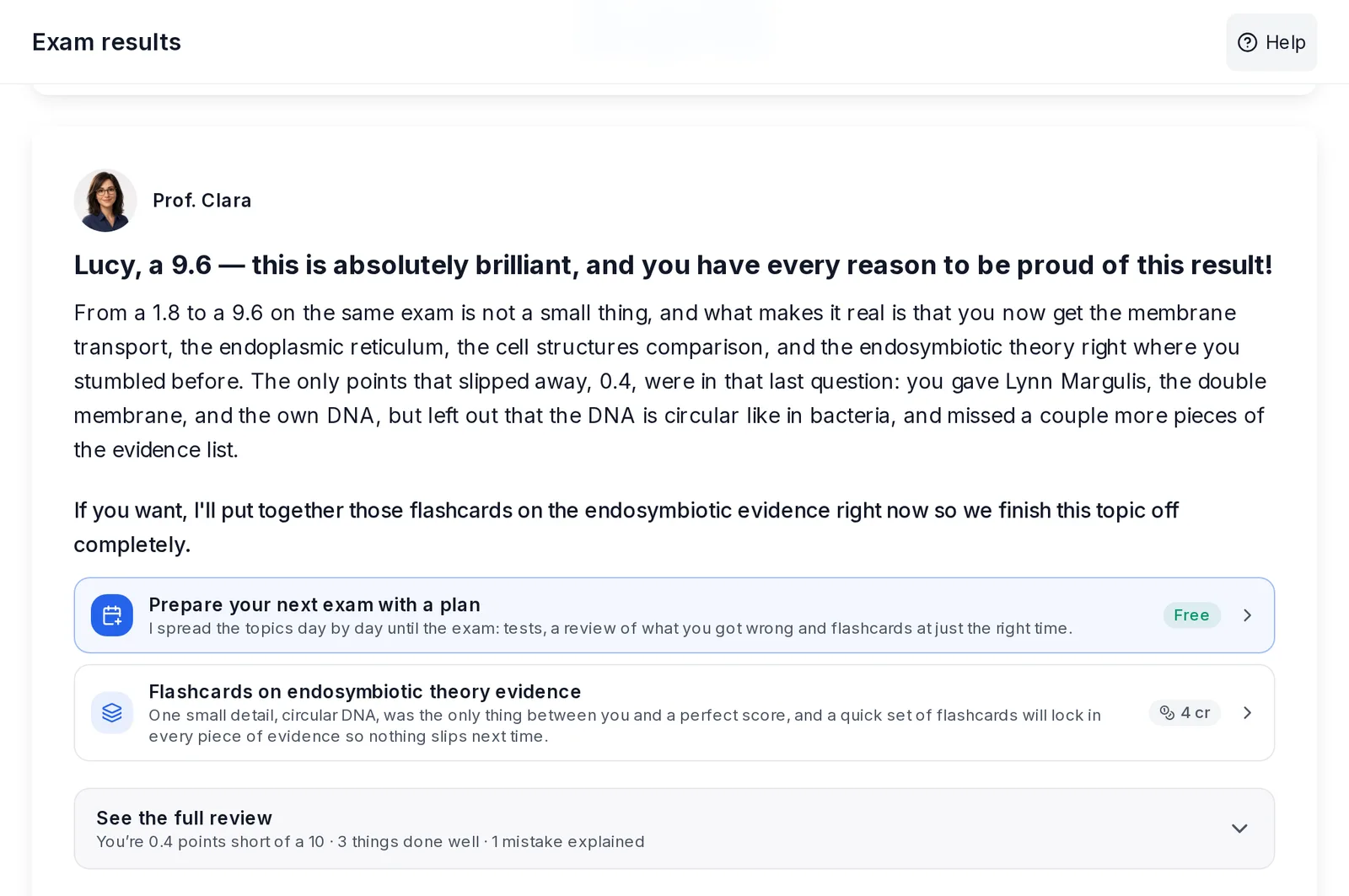 The results of an AI-graded exam: the teacher's message, what to do now and the full review folded
-
The exam score. For multiple choice and true/false, you also see "X of Y correct". Written questions are graded by the AI with an indicative score, with a notice that an AI graded them. Each one gets its score out of 10 instead of "correct" or "incorrect". The style of the comment depends on your AI Teacher (see Settings and account). The tone doesn't change the score.
-
How a written question is scored. The AI looks at each thing the question asks for (classify, explain, give an example…) and whether it's right, half right, wrong or not done. From ESO (Spanish secondary school) onwards, the split is:
- In a short answer, content is worth 8 points, organization 1 and wording 1. Wording means full sentences that pick up the question.
- In a long answer, content is worth 7, organization 2 and wording 1.
- If one part is clearly the main point of the question, it's worth half the content.
- Each conceptual error takes off 1 point.
- With less than half the content, organization and wording count half. With no content, they don't count.
In primary everything is content, and half-right answers count for more.
-
The grading language. Grading is in the app's language. If the exam is in another language (Catalan, Basque…) and you haven't chosen yet, the question "This exam is in …" appears once, with Yes, in … or Keep …. What you choose applies from the next grading. You can change it in Settings → Correction language.
-
If grading fails, you aren't charged. If it was the grading already paid for with the exam, you keep it for the next time you submit it.
-
In primary, while taking the exam, multiple-choice answers appear as big colored cards with their letter. Each question has the Listen to the question button, which reads it with the browser's voice, options included. Progress is shown as a row of stars. In the results, above the score, 1 to 3 stars appear with an encouraging message: "Fantastic!", "Well done!" or "Good try! Review it and have another go".
-
Breakdown by question: "What you did well" and "Where you lost points". You see what each thing takes off and why, and the figures add up to the score. Also the split between content, organization and wording, and a tip. In primary it shows "What was missing", without figures. For practical questions, the grading goes step by step. Gradings done before November 2026 keep their format: what's right, the errors and what's missing.
-
Spelling: if you turned it on, you see the mistakes and what they took off.
-
View in material takes you to the place in the document the question comes from.
-
The questions come last, with their number in the exam. First, open, the ones you need to look at: the wrong ones and those scored below 7. The ones you got right are folded under "N questions right": tap Show to open them. When you print the results, they all come out.
-
Teacher review, right below the score: their message and, under it, What to do now, with three options at most:
- Explain what I got wrong, first, if you got some question wrong and your score is below 7. Under it you have Or explain the whole topic. What it includes is explained below.
- Prepare your next exam with the Study plan. It's free and always shows up, even if the teacher didn't suggest it.
- Whatever the teacher suggests: flashcards, another exam or a summary of what you got wrong.
See the full review opens the rest of the review:
- "You are N points away from a 10": where the points went and in which questions. Not shown in primary.
- "What you did really well".
- "Where something slipped".
-
Ask … (with your teacher's name, below the review): a chat with your AI Teacher about that exam. You can ask:
- why a question got that score,
- what a 10 answer would look like,
- questions about the syllabus it covered. If needed, it checks your notes.
If you ask it for another exam or more practice, it doesn't set exercises in the chat: it leaves a button under its answer to do it for real (for example, Another exam with new questions or some flashcards), with its price in credits. When you start, it suggests questions about the one you did worst on. You have 8 questions per exam, counting every time you retake it. With the last one it tells you what you should do now. Once the 8 are used, you can no longer write: instead you see what it recommends next. If you got something wrong, it's Explain what I got wrong. If not, it depends on your score: 7 or more, Another exam with new questions; below that, A summary to review the topic. The score doesn't change: if you dispute an answer, it'll tell you what it thinks of your reasoning and how to write it next time. The conversation is saved and you see it when you return to the results. If you later ask for Explain what I got wrong or Explain the whole topic, the explanation takes into account what you asked. It's free for now.
-
Explain what I got wrong: your teacher explains it from scratch. It's in What to do now if you got some question wrong and your score is below 7. If you've used your 8 questions to the teacher, it's also offered below the chat, as Is there something that hasn't clicked yet?. Choose between:
- Explain what I got wrong: the underlying concepts behind your mistakes.
- Explain the whole topic.
Each concept comes with what it is, how to recognize it, examples, typical traps and a worked example. At the end, exercises with their solutions. If the exam's answer or your material had a mistake, it tells you. It's in your correction language (see Settings and account). It costs 18 credits either way. It takes about a minute and is saved in Summaries as "Explanation: …", with audio and printing like any summary.
-
Rate the grading: Good, So-so or Unfair, with the reason. It helps us improve it.
-
Print results and Download results.
-
Retake exam or go back to Exams.
New questions in each exam
- Retake exam asks the same questions again. For new questions, create another exam from the same material.
- A new exam avoids the questions you've already had in your exams on that same material. Exams that share topics or documents count, from the last 90 days. It also prioritizes the parts of the material it hasn't asked you about yet.
- Questions you get wrong do come back, on purpose, in part of each new exam. They're worded differently, asking about the concept from another angle.
- If the material is short and almost everything has already been asked, a concept may come back, but asked in a different way.
The exam list
Each exam is a card, from newest to oldest. The card shows:
- its subject and type (Subject, Exam or Project),
- the topics it covers,
- the exam type and the number of questions,
- the date and the Best score (or Not taken).
Tap the card to open the exam. While it's being generated, or if it couldn't be generated, it doesn't open.
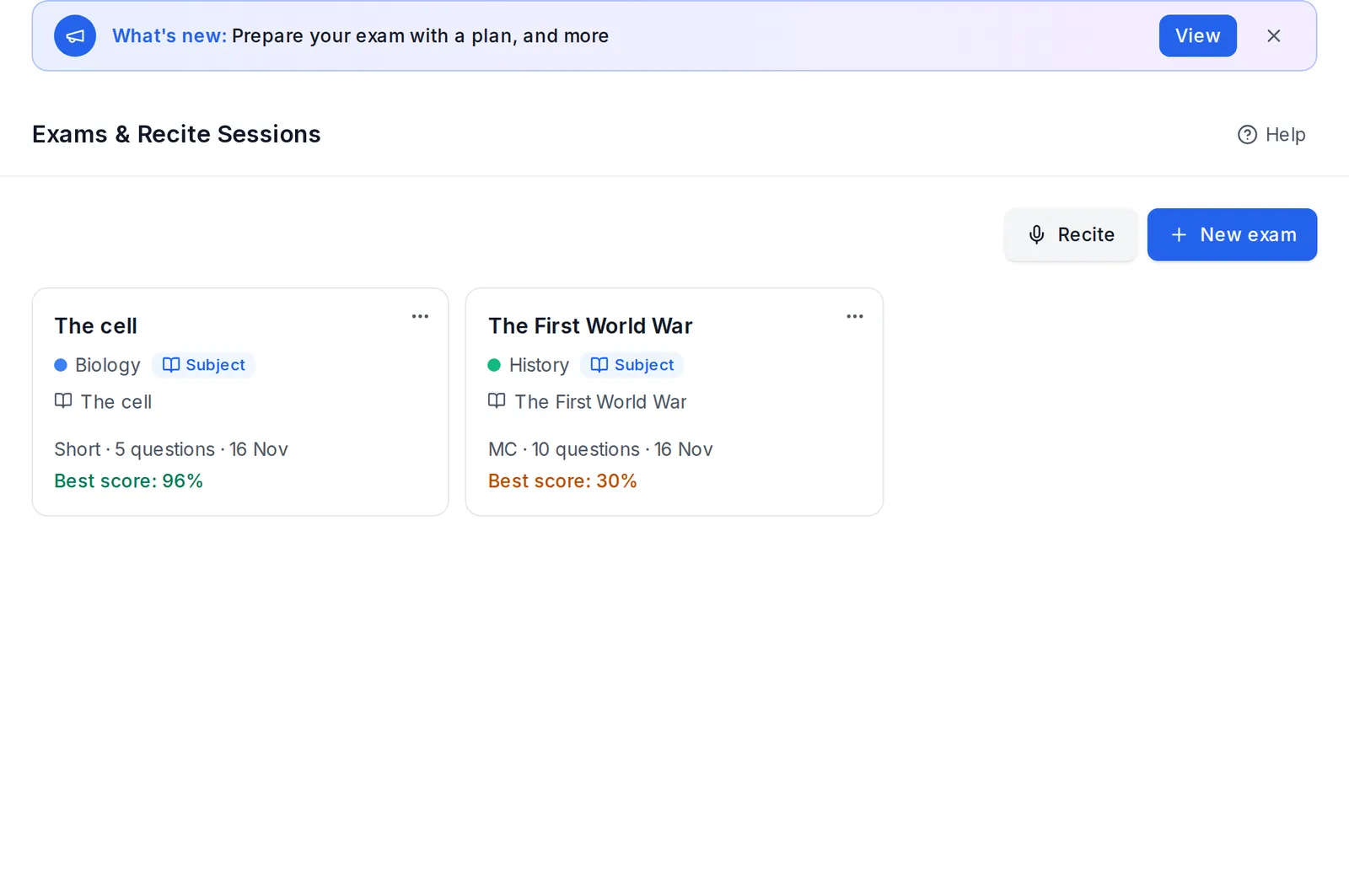 The exam list, with the type, questions and best score of each one
- Each exam's ⋯ menu has Last result (if you've already taken it) and Delete.
- With 7 exams or more, the search box appears, which searches by title, subject and topics. The filters appear too: Subject, status (Not taken / Taken) and order (Most recent, Oldest, Best score, Name (A-Z)).
- Recite topics is available at every level except primary. If you have it, you see the Recite button and, below, the Recited topics section. Its cards show the length, date and score (or In progress). The same filters apply to it.