AI-written notes prepares the notes for a topic. The AI writes them from scratch or from your documents.
It's useful when you have no material for a topic or what you have is disorganized.
Where to find it
- In the subject: Generate with AI → AI-written notes, or a topic's Generate menu.
- In an empty topic, the AI-written notes button.
- In Upload document, the "Prepare the topic with AI" link. If you were uploading to a topic, the notes go to that topic and its name is already filled in.
- In the first step of the exam, summary, flashcards and outline wizards: No notes? → Create the notes with AI.
Step by step
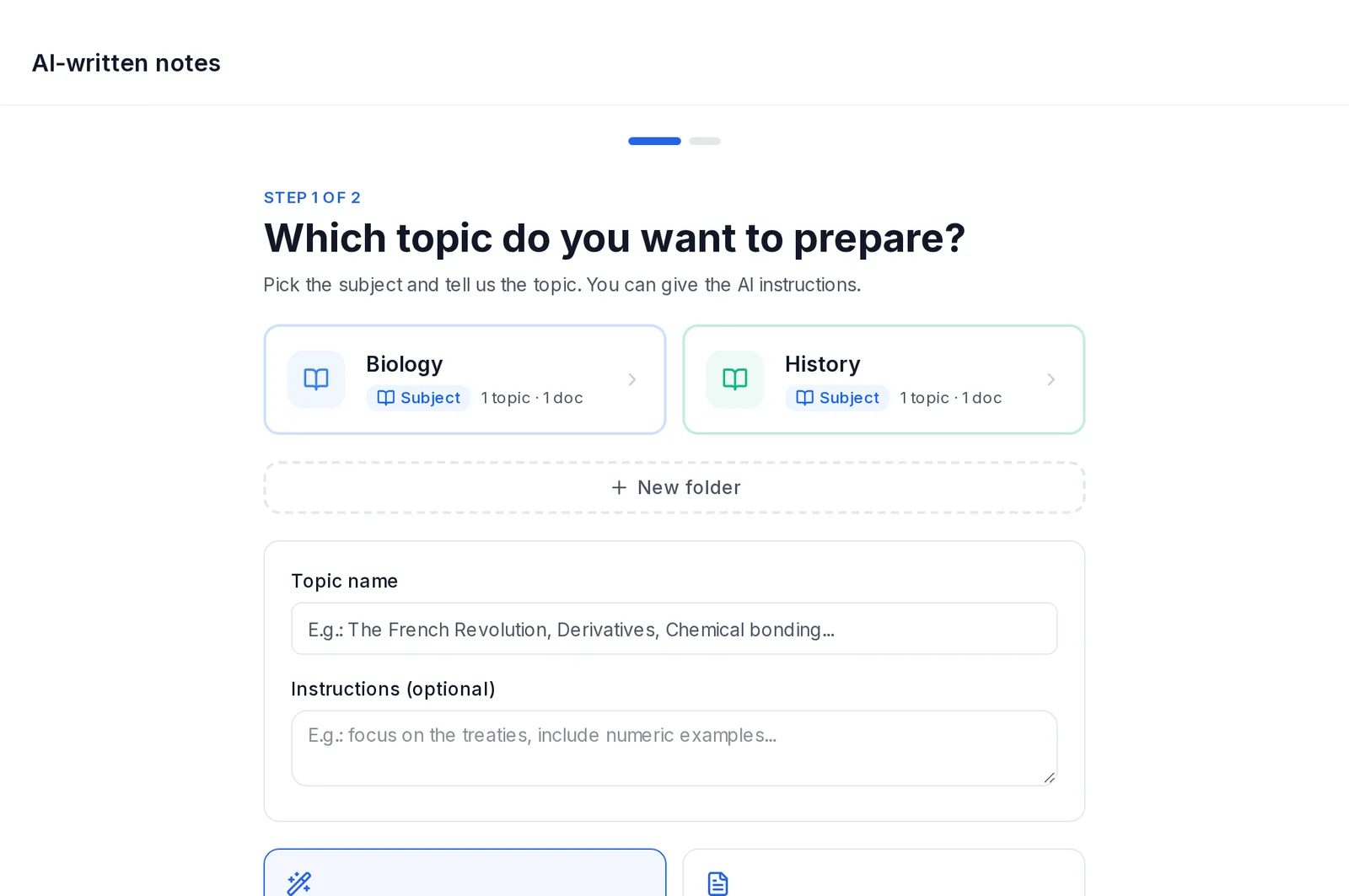 AI-written notes, step 1: the subject, the topic name, the instructions and From scratch or From my notes
- The topic: everything is on a single screen.
- Choose the subject and, if you like, the topic.
- Type the topic name (at least 3 letters).
- If you want, add instructions for the AI: what to include, the approach, the official syllabus… Up to 1,000 characters.
- Choose the mode:
- From scratch: the AI writes the notes using its general knowledge, adapted to your level.
- From my notes: the AI uses your documents as its source.
- Documents (only with "From my notes"): choose up to 10 already-processed documents from the subject.
- Review the outline: the AI proposes an outline of at most 14 sections. Before generating you can:
- Choose the length: Short (about 5 pages), Medium (about 10) or Full (about 15). Do this first: if you change it afterwards, the AI proposes a new outline and your changes are lost.
- Rename, reorder, remove or add sections.
- Ask it to Propose another outline.
- Tap Generate topic. The button shows what it costs.
The notes open in the viewer while they're being written, and the app lets you know when they're done. They become one more document in the topic. From there you can generate summaries, outlines, exams or flashcards.