Creating a summary
- Go to Summaries → New summary. You can also use a topic's Generate → Summary menu, or the subject's Generate with AI → Summary.
- Choose the document and the style.
- Each summary is of one document. If you come from a topic or a folder with several, the app asks Which document?.
- The cost depends on how many pages that document has. It's shown on the button before you confirm.
If you already have a summary of the same document in the same style, the app warns you that it will replace it. The previous one is kept as a version, and redoing it costs half. The Custom style never replaces another one: each instruction creates a new summary.
The 8 styles
- Full: a long summary organized by sections. For in-depth study.
- Executive: short key points. For a quick review before the exam.
- Narrative: flowing text, the way a teacher would explain it in class.
- Schematic: hierarchical bullets to review at a glance, with no blocks of text.
- Questions and answers: question-and-answer pairs to test yourself while you study.
- Feynman: explained as if you were 12, with analogies and simple words.
- Exam-focused: what comes up most, the typical traps and model answers.
- Custom: you describe the style yourself in one sentence (10 to 280 characters).
The list also shows the explanations of an exam ("Explanation: …", type Explanation). They aren't created from here: you ask for them from an exam's results (see Exams).
The summary list
Each summary is a card, from newest to oldest. The card shows:
- The subject and its type.
- The topics it covers.
- The style and the date.
Tap the card to open it. The ⋯ menu has Delete.
With 7 or more summaries, the search box and the filters appear. The search looks at the title, subject, topics and style. The filters are Subject and the order: Most recent, Oldest or Name (A-Z).
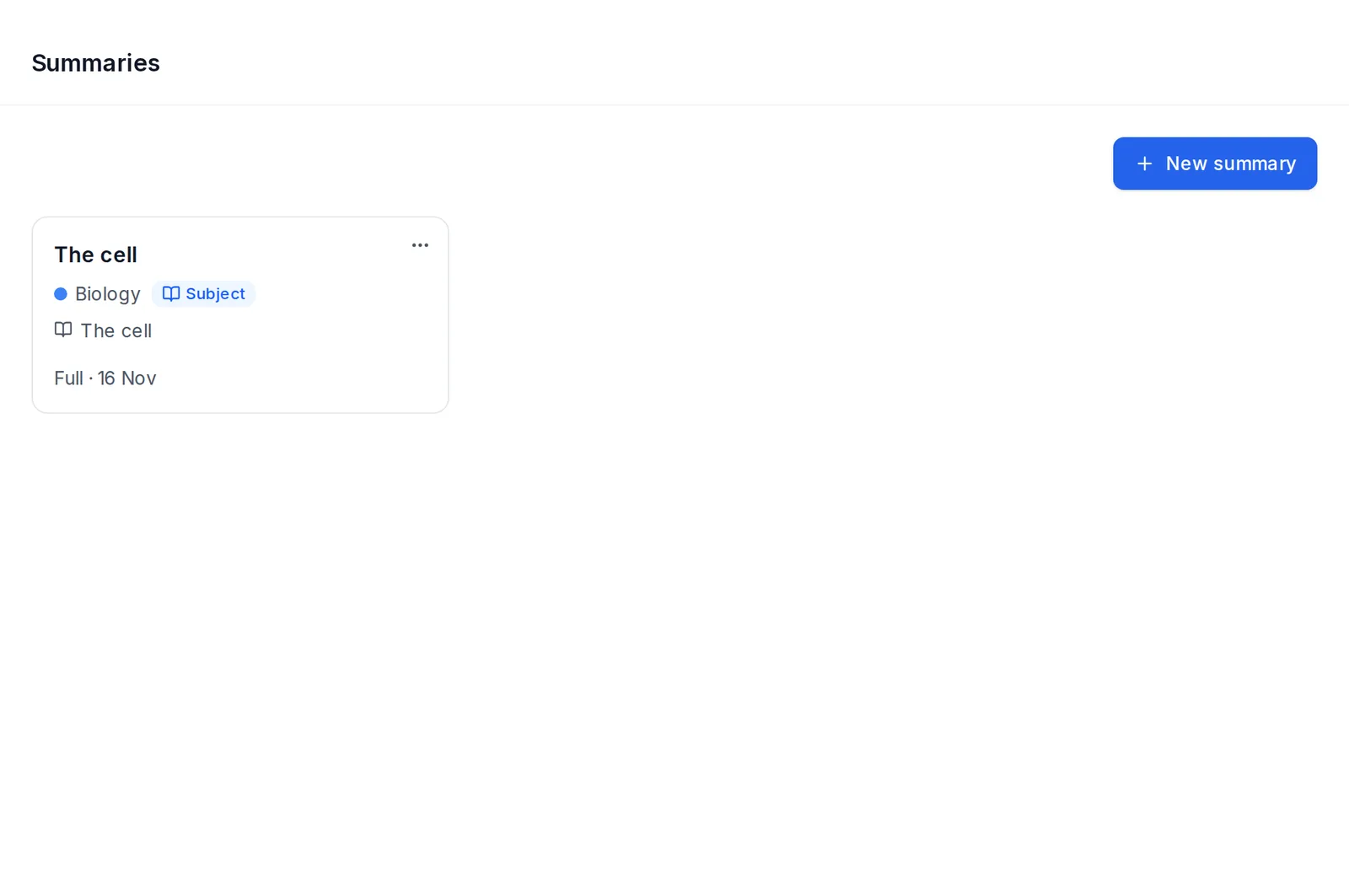 The summary list with the New summary button
If you upload new material to a topic that already had a summary, the card marks it as Updated content. In the viewer it shows as Outdated, with a warning that it may be incomplete. To bring it up to date, generate it again.
Reading a summary
The summary opens in the viewer. There you have the Typography tools: text size, line spacing and Light, Sepia or Dark theme. You can also rate it in "Was this summary useful?".
If your material has figures (a diagram, a labelled drawing, a map), the summary can include them where they explain something. Tap one to see it full size.
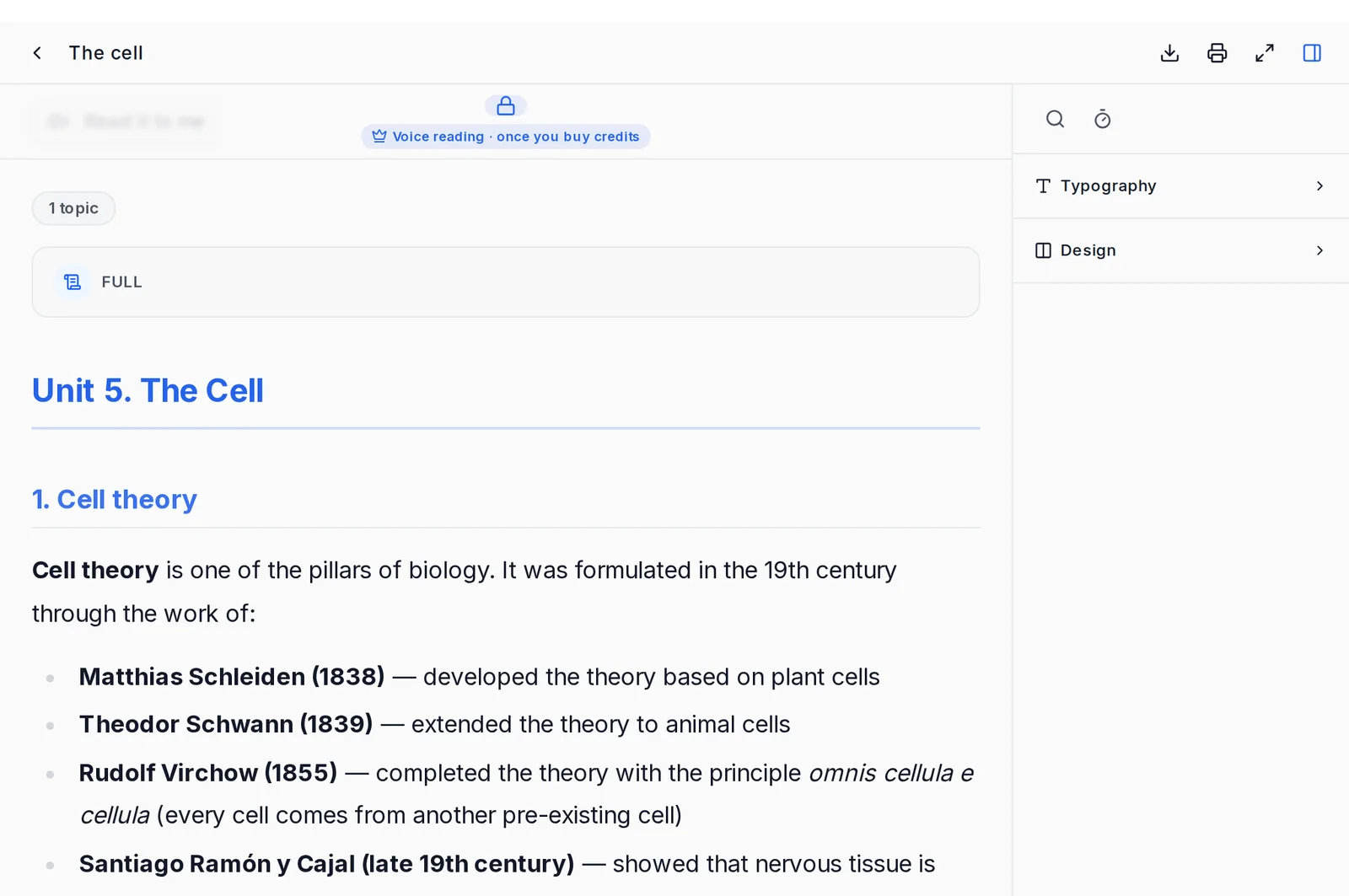 An open summary, with voice reading at the top and Typography and Design in the right panel
- Print and Download PDF: Download opens the browser's print dialog, where you choose "Save as PDF". It doesn't cost credits and carries the ExamFlow mark.
Listening to it: "Read it to me"
- In the summary viewer, tap Read it to me. It first prepares the script for listening and splits the audio into episodes. This preparation is free.
- Each episode shows its length and its price. It's charged per minute of audio, and you only pay for the episodes you ask for (Load episode / Play episode N).
- You can change the speed and move on to the next episode.
Audio is the most expensive thing per minute. Only ask for what you're going to listen to.
- The voice is chosen in Settings → Appearance and applies to new audio. A summary you've already started listening to keeps its voice.
- It isn't available in the free trial.