Opening a document opens the viewer. The document is on the left or in the center, and there are panels with tools on either side.
Document views
In the right panel, under Document, you choose how to view it:
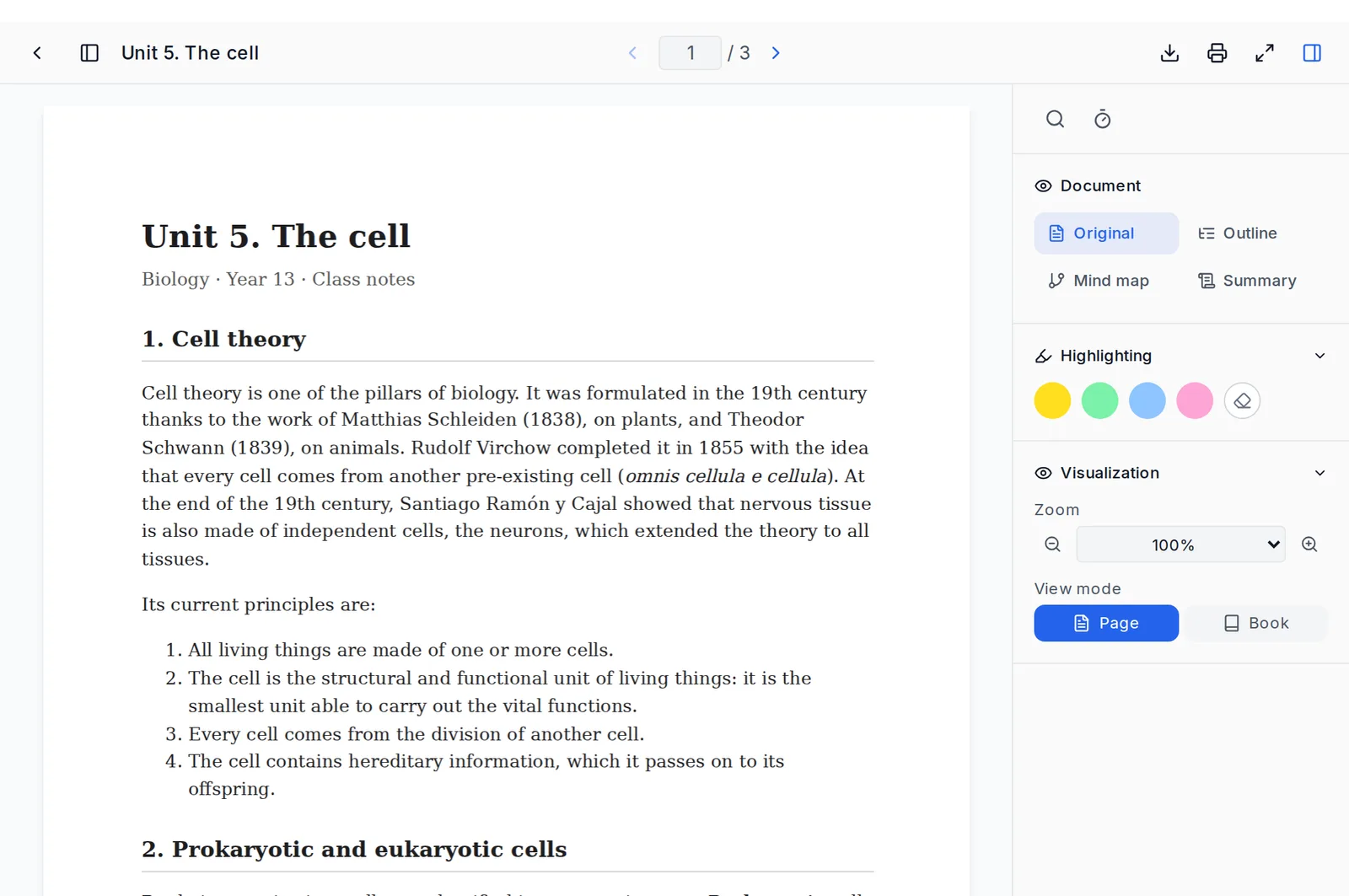 The viewer: the document in the center, the right panel with views, highlighting and visualization, and the buttons to generate at the bottom
- Original: the PDF exactly as you uploaded it.
- Enhanced: the text cleaned up and neatly laid out, comfortable to read. It's the view where typography and text highlighting work. It appears for scanned documents, or once it has been generated. A text PDF is read directly in Original.
- Outline, Mind map and Summary: if you've already generated them for that topic. If there are several summaries, it lets you choose which one.
In a topic written with AI-written notes there's no Original. The notes are shown in the Reader view.
Top bar
It has these buttons:
- Back.
- Show or hide the side panel.
- Previous and next page, or go to a page.
- Download and Print.
- Full screen.
- The tools panel.
In the Original view, Download and Print use the file you uploaded, as it is.
In the other views, they open the browser's print dialog. To save it as a PDF, choose "Save as PDF". Download explains this first. Printouts carry the mark "Generated with ExamFlow — examflow.app".
Download and Print only appear on medium or large screens, not on a phone.
Left panel
- Thumbnails of the pages.
- Contents: the document's table of contents, to jump to each section.
- Highlights: all your highlights and notes, by page.
Highlights from the enhanced text, the outline and the summary have their own section. Each highlight is only shown in the view where you made it.
From Highlights you can export them to the clipboard, to paste them somewhere else. You can also delete them all.
Right panel
- Navigation: go to the start of the topic and continue reading where you left off. It appears in Original or Reader, when you open the document from a topic.
- Highlighting: 4 colors, highlight mode (select text and it stays marked) and erase. You can add a note to each highlight.
- Visualization, only in the Original view: zoom from 50% to 200% and Page or Book mode.
- Typography and Design, in Enhanced, Outline and Summary: font, weight, text size from 14 to 24 px, line spacing, column width and Light, Sepia or Dark theme. They help you read more comfortably: large text, more space between lines or a sepia background.
- Search in the document, also with Ctrl+F.
- A study timer: start, pause and reset.
In a scanned PDF you can't highlight on the original, because the pages are images. The viewer offers Highlight in text view.
Generating from the viewer
The bottom bar has shortcuts to generate an Outline, Summary, Exam and Flashcards for the topic. Each one shows what it costs. If the outline already exists, the button changes to View outline.
Keyboard shortcuts
- Arrows: turn the page.
- Ctrl+F: search.
- Ctrl+B: side panel.
- Ctrl + / Ctrl −: zoom.
- F11: full screen.