An Outline organizes a topic into hierarchical sections. The Mind map draws it as a diagram. You'll find them all in Mind maps.
Creating an outline or a mind map
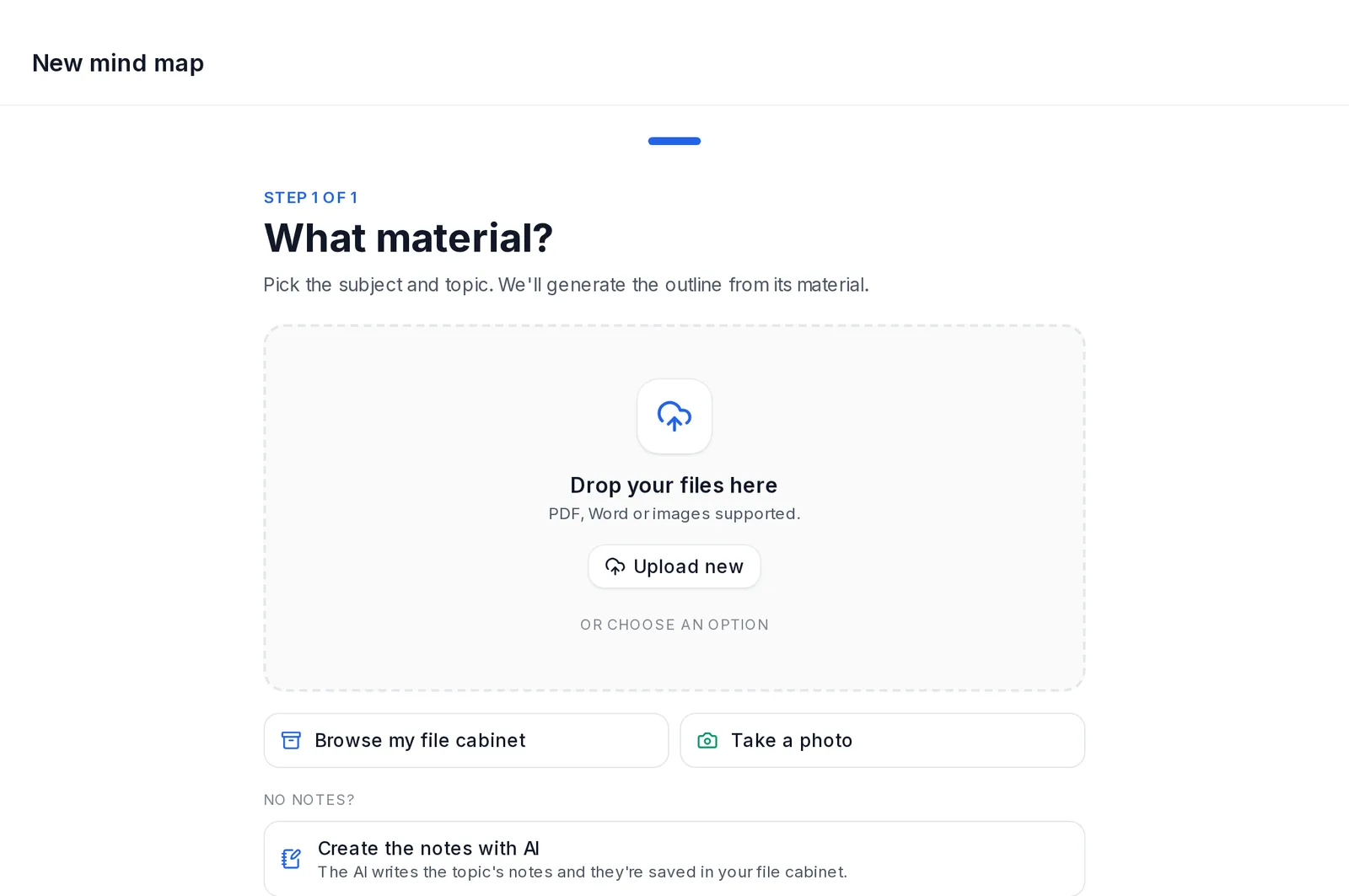 The New mind map wizard: upload material, browse the file cabinet or take a photo
There are two ways:
- In the subject, the Generate menu on each topic's row → Outline or Mind map. The Generate with AI menu in the subject header doesn't have them.
- In Mind maps → Create mind map. A wizard opens where you choose the document and the type of outline.
The cost depends on the document's pages and is shown before you confirm.
The For revising outline is of one document. If the topic or folder has several, the app asks Which document?. On the outline page you switch from one to another with that same selector.
The outline and the map of the same document go together. If the outline already exists, opening the map costs nothing. And if that document already has an outline, the app opens it instead of creating another.
Two types of outline
-
For revising outline: the usual one, for studying the topic.
-
Presentation outline: designed for delivering the topic. It's a feature in testing and only appears on some accounts. It has three modes:
- Recite the topic and Oral exam: splits the minutes between the sections.
- Written essay exam: splits the words, for writing it out.
It includes what you "Must mention" in each section. By default it uses the typical time for your level: for oposiciones, 60 minutes reciting or 2,500 words in writing. You can change it when you create it. It's created from the wizard or with + For presenting on the outline page.
The outline page
It has the Mind map and Outline tabs. Plus one tab for each presentation outline you have (Recite, Oral exam, Essay).
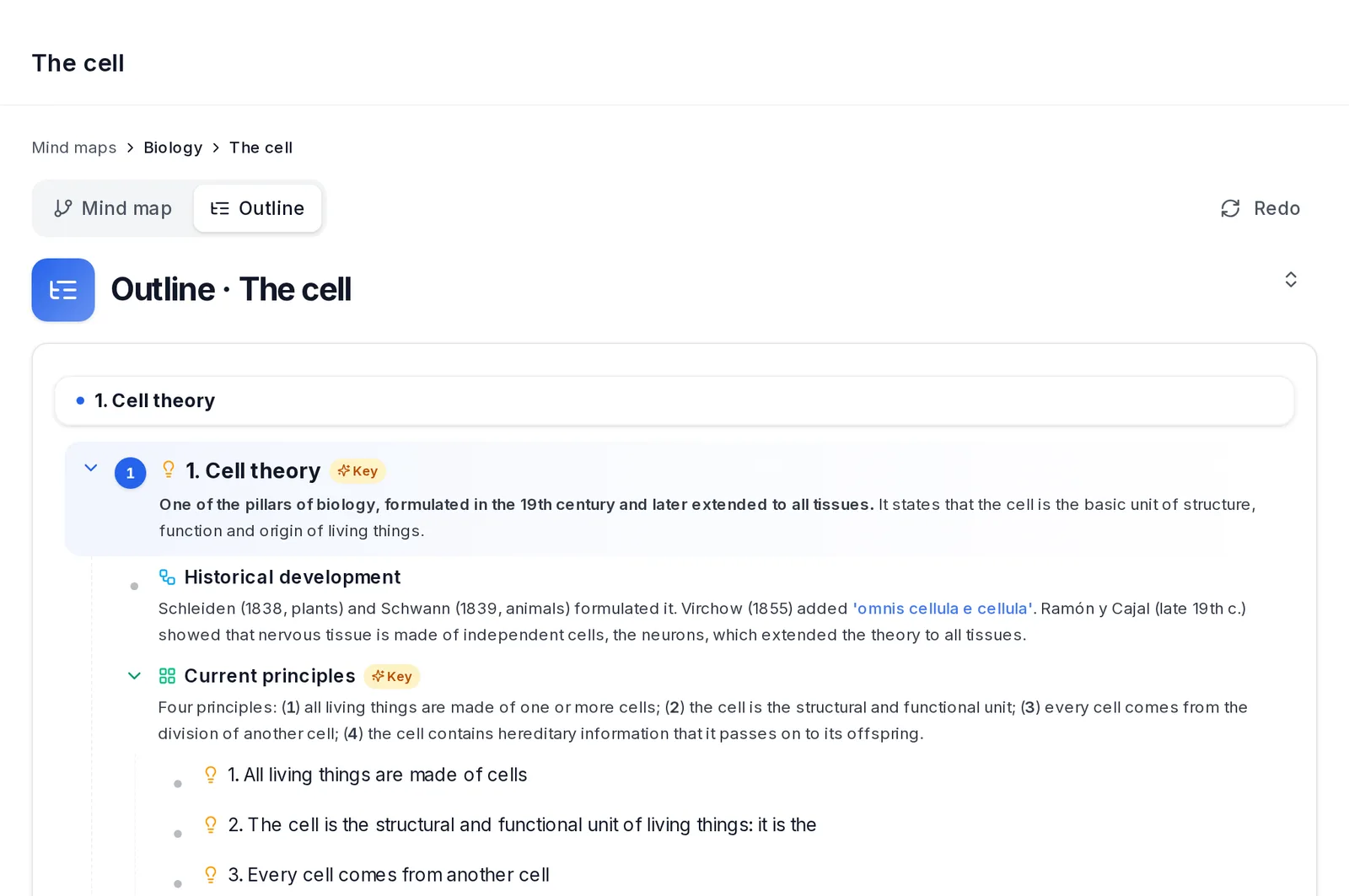 The outline page, with the Mind map and Outline tabs and the Redo button
For revising outline:
- Tags for each section, Print and Study mode.
- Some sections carry the figure from your material that explains them. You see it when you expand the section, and tapping it enlarges it.
- Inside Study mode, Print and Download as PDF (from the print dialog).
- Redo: with shortcuts or by saying in your own words what to change. Redoing an outline that already exists costs half. The new one replaces the old one.
A special case: outlines created before 26 October 2026 for topics with several documents covered the whole topic. If you've uploaded new material to that topic, Update appears.
Presentation outline:
- Practise reciting it: opens Recite topics with that outline and shows what the session costs. It doesn't appear for the essay mode or at levels without Recite topics.
- Redo with instructions, Print and Delete.
- The Oral exam one also includes key terms and likely questions from the examining panel.
- It can't be edited by hand. To change it, redo it with instructions.
Mind map:
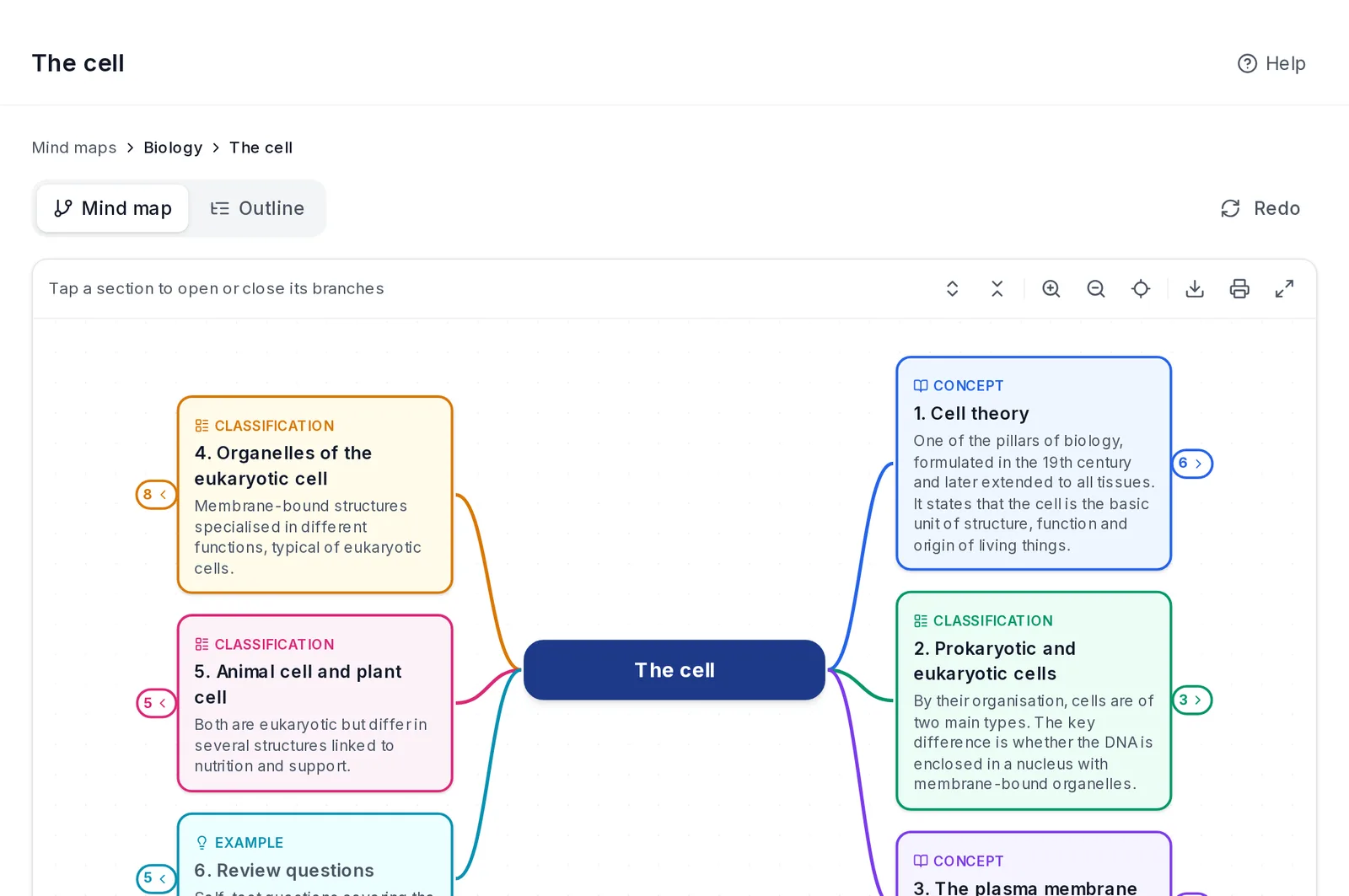 The mind map: the topic in the centre and the main sections as coloured, folded branches
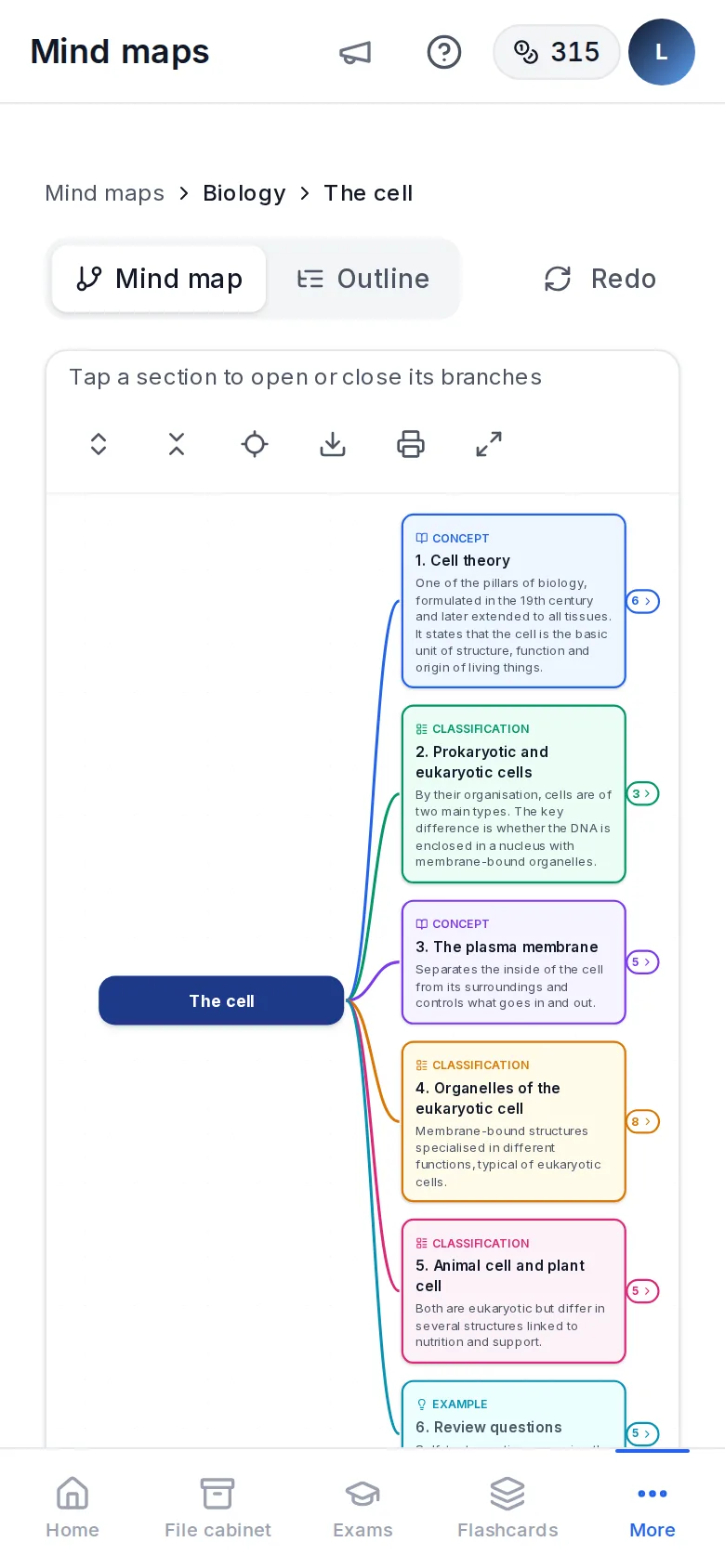 The mind map on a phone, with every branch on one side
- The topic sits in the centre and each main section is a branch with its own colour, numbered in the outline's order.
- If the outline is long, it opens with the branches folded. Tap a section to open or close its branches; the number next to a folded one tells you how many sections it hides.
- The outline's figures appear in their section, and tapping one enlarges it. Tags appear too, but you add them in the Outline tab.
- Expand all, Main sections only, Fit view, zoom (pinch on a phone) and full screen.
- Export PNG (an image of the map as you have it open, with the ExamFlow mark) and Print.
- It can't be edited by hand. To change it, Redo the outline: the map is the same outline drawn out.
From the page there are also shortcuts to Generate exam, Summary or Flashcards for that topic.